Edit a scoring template's rules
This article covers how to change the rules inside a scoring template: how each scoring code is scored, and how discards work, for each racing event type. To add a template in the first place, see Create a scoring template.
Access. You need the Official or Admin permission on the club.
Editing a template does not change events that already exist. Each event took its own copy of the rules when it was created, and keeps it. What you change here applies to events created afterwards. To change how one existing event is scored, edit that event's own scoring rules instead. See How scoring templates work.
Open the rules editor
- Go to your club's page and select Scoring templates.
- Find the template you want to change.
- Select Edit Rules on its row.

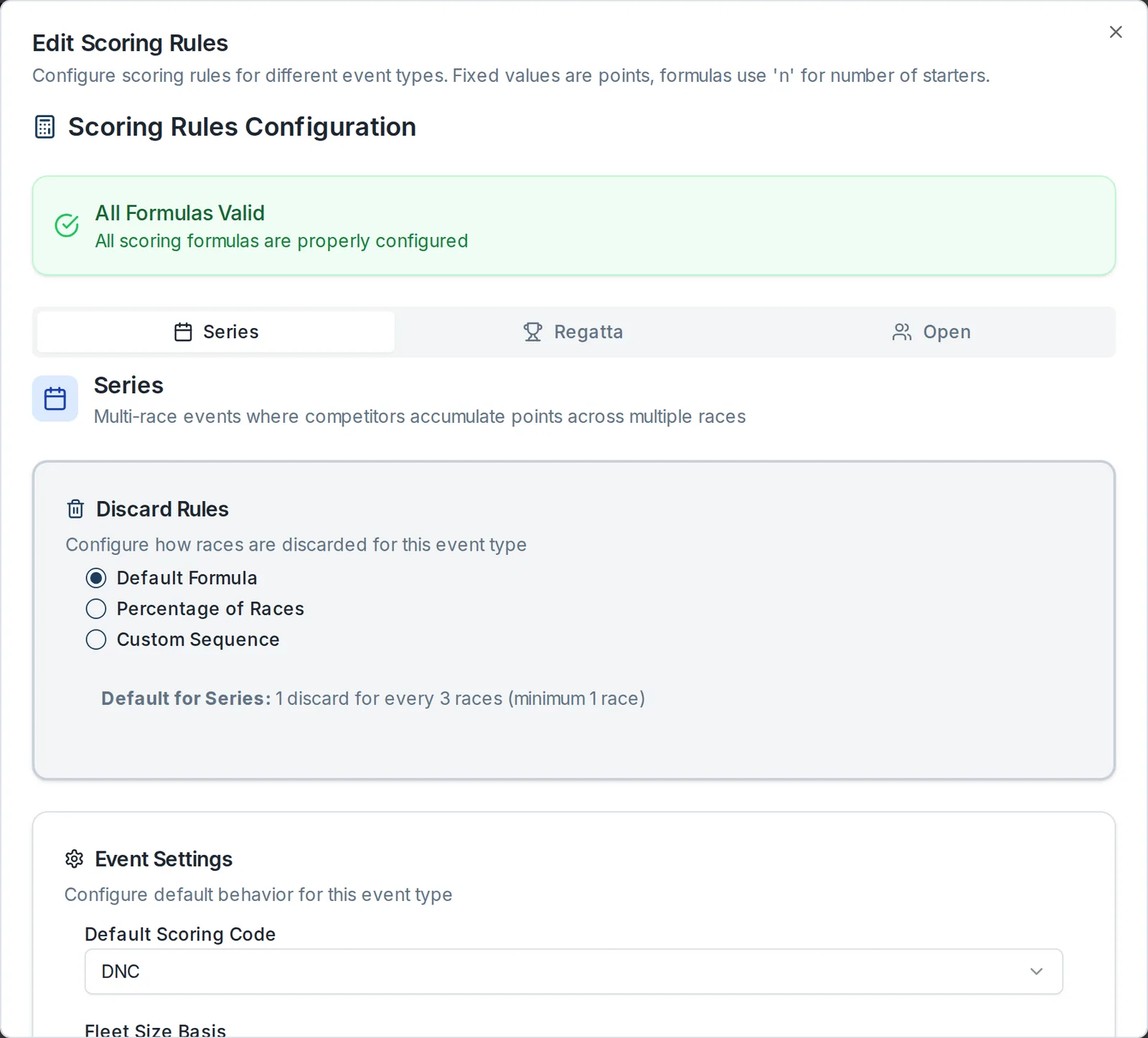
This is separate from the Edit button next to it: Edit changes only the template's name and description, while Edit Rules changes how it scores. The Scoring rules dialog opens.
Choose the event type
The dialog has three tabs across the top: Series, Regatta, and Open. Each holds its own rules, so the same template can score a weekly series differently from a one-day open meeting. Choose the tab for the event type you want to change before editing anything. Repeat for the other tabs if you want to change them too.
Each tab has the same sections, described below.
Set the default code
The Default code section is at the top of each tab. It sets the code a boat gets when it has no result for a race, usually DNC. For what each code means, see Scoring codes.
Set the discards
The Discards section controls how many races are dropped from a sailor's total. Choose one:
- 1 per 3 races is the standard pattern most clubs follow: one discard for every three races sailed.
- Percentage discards a share of the races sailed. Set the percentage and how part-races are rounded.
- Custom lets you set exactly how many discards apply at each number of races sailed.
Whichever you choose, a Preview underneath shows what the rule produces, for example 4 races: 1, 8 races: 2, 12 races: 4. Use it to check the rule behaves the way you expect before you save.
Change how a code is scored
The Scoring codes section groups every code by what it is for:
| Group | Codes |
|---|---|
| Non-finishers | DNC, DNS, DNF, RET, RAF, TLE |
| Disqualifications | DSQ, OCS, BFD, UFD, DGM, DNE |
| Duties and redress | RO, OOD, RDGa, RDGb |
| Penalties | SCP, ZFP, DPI |
| Other | NSO, NOH, OPN, NSC |
Select a group to open it. Each code inside shows how it is currently scored, for example seriesCompetitors + 1. For a definition of each code, see Scoring codes.
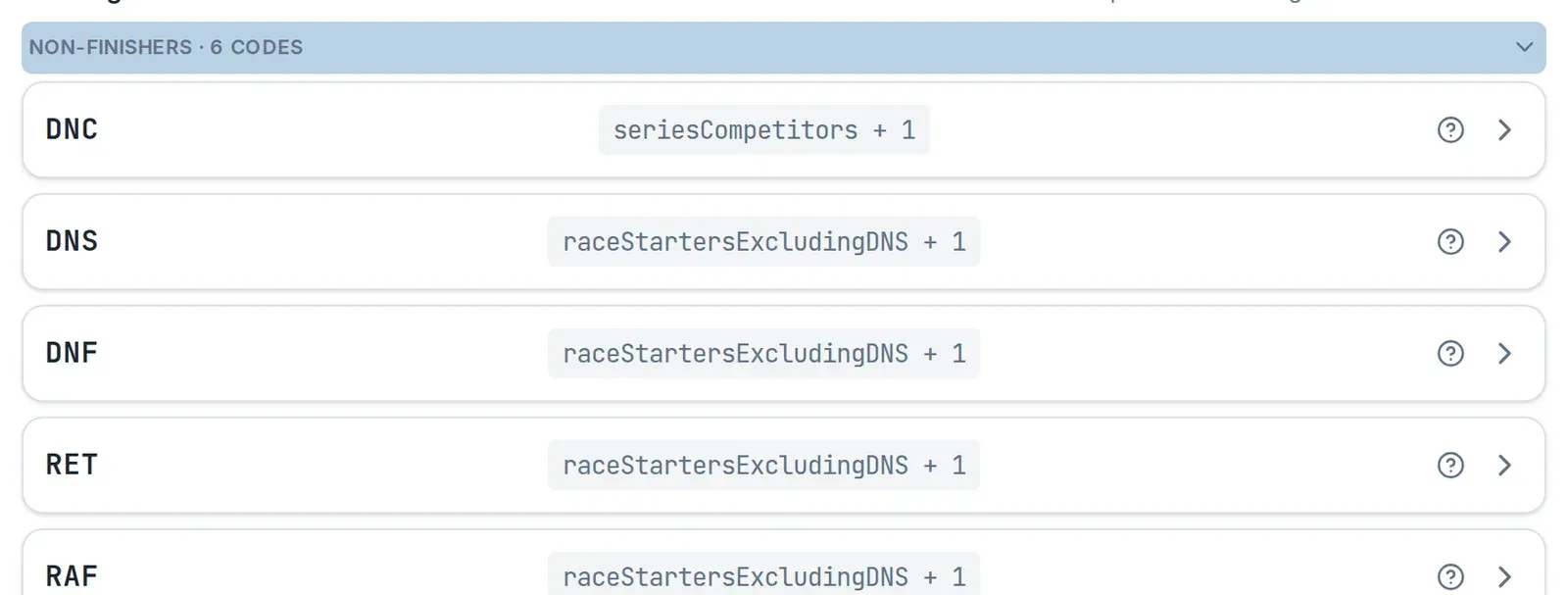
To change a code:
- Select the group, then the code you want to change.
- Choose a Scores as option:
- Fixed points scores a set number of points. Enter the number under Points.
- Formula scores points from a formula, built from the variables Dockside fills in when it scores each race.
- Redress average scores the average of the sailor's other races, used for redress and duty codes. Choose a Redress method (RDGa: average of all races or RDGb: average of earlier races) and set Minimum races.
- Same as another code scores the code the same way as another code you pick under Same as.
- Penalty adds a penalty to the sailor's finishing position. Choose a Penalty type (Fleet percentage, a share of race starters per RRS 44.3, or Fixed points), then set the value.
- Fill in the inputs for the option you chose.
If a formula is not valid, the code's row says so and names the problem. Fix any reported problems before saving.
Choosing a variable
The Scoring variable guide at the bottom of the dialog lists the variables you can use in a formula and what each one counts, along with example formulas such as maxStartersSeries + 1 for a stricter DNC. Average variables, such as averagePointsExcludingDNC, only work with redress codes.
Add a code of your own
If your club scores something the standard codes do not cover, for example a tow-home code, select Add custom code under Custom codes. A custom code takes a points rule like any built-in code, and appears alongside them when someone enters results for an event using this template.
Save the rules
When you have finished, select Save rules at the bottom of the dialog. Select Cancel to close without saving.
Your changes apply to events created from now on. Events that already exist keep their own copy of the rules and are not re-scored. If an existing event needs these rules, open that event and select Reset to template to take a fresh copy.