Manage race days
A series or regatta has its race days scheduled from the recurring pattern you set when you created it. This article covers how to change those days afterwards: add an extra date, add notes to a day, mark a day complete, or remove a date.
Access. You need the Admin, Official, or Race Officer permission on the club that runs the event.
Open the race day list
- Open the event. On its Overview, select Edit Event.
- Open the Schedule tab. The Race Days list shows every day, in order, each with its date, its number of races, and a set of controls.
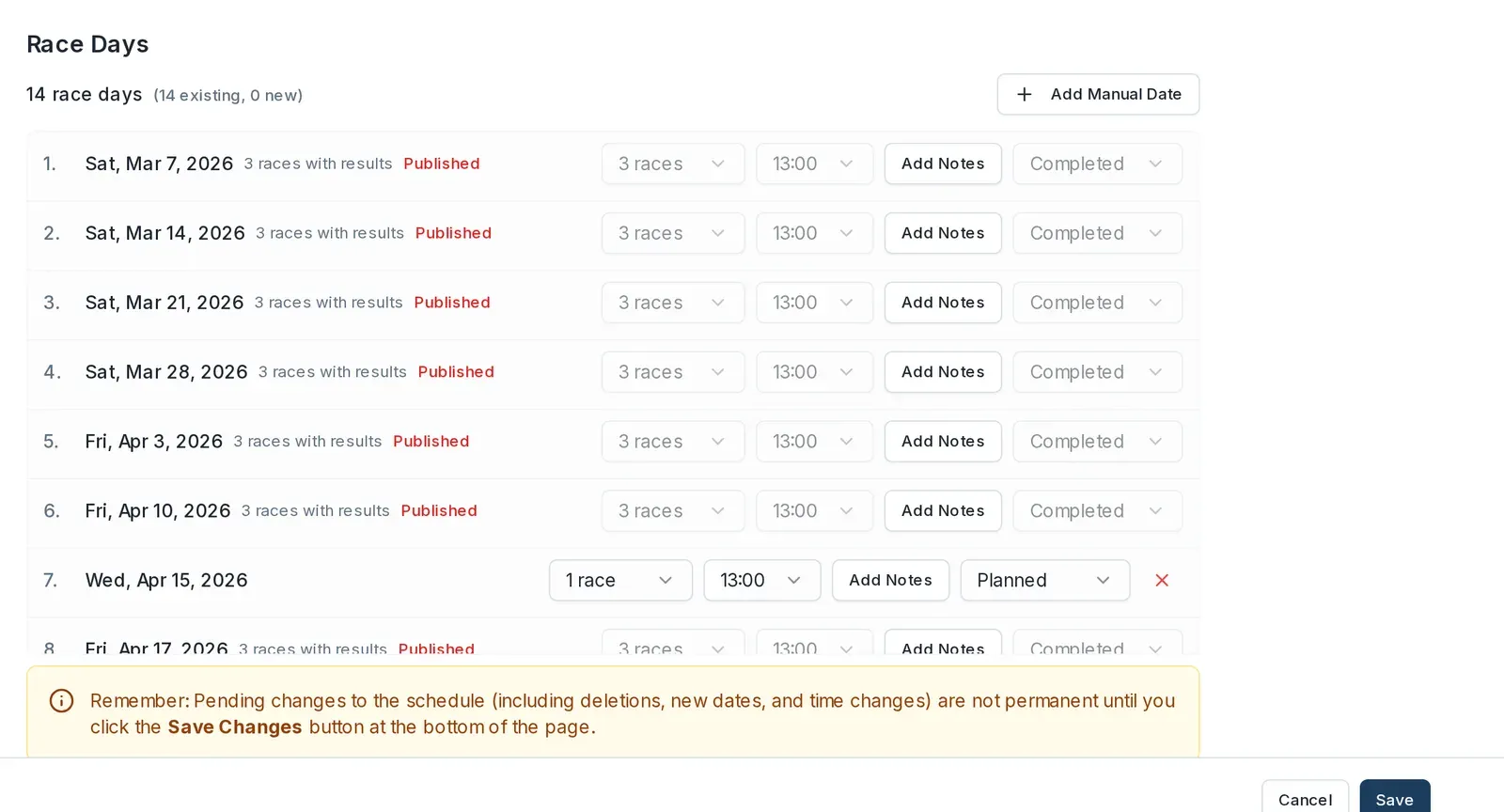
A day whose results have been published shows a red Published tag, and its races, time, status, and delete controls are locked. You can still add notes to it.
Changes to the schedule are held until you save. A notice under the list reminds you: adding a date, removing a date, and changing a time are not permanent until you select Save Changes at the bottom of the page.
Add a race date
- Select Add Manual Date.
- In the Add Manual Race Date dialog, choose the Date, the Number of Races, and the First Gun Time.
- Select Add Date.
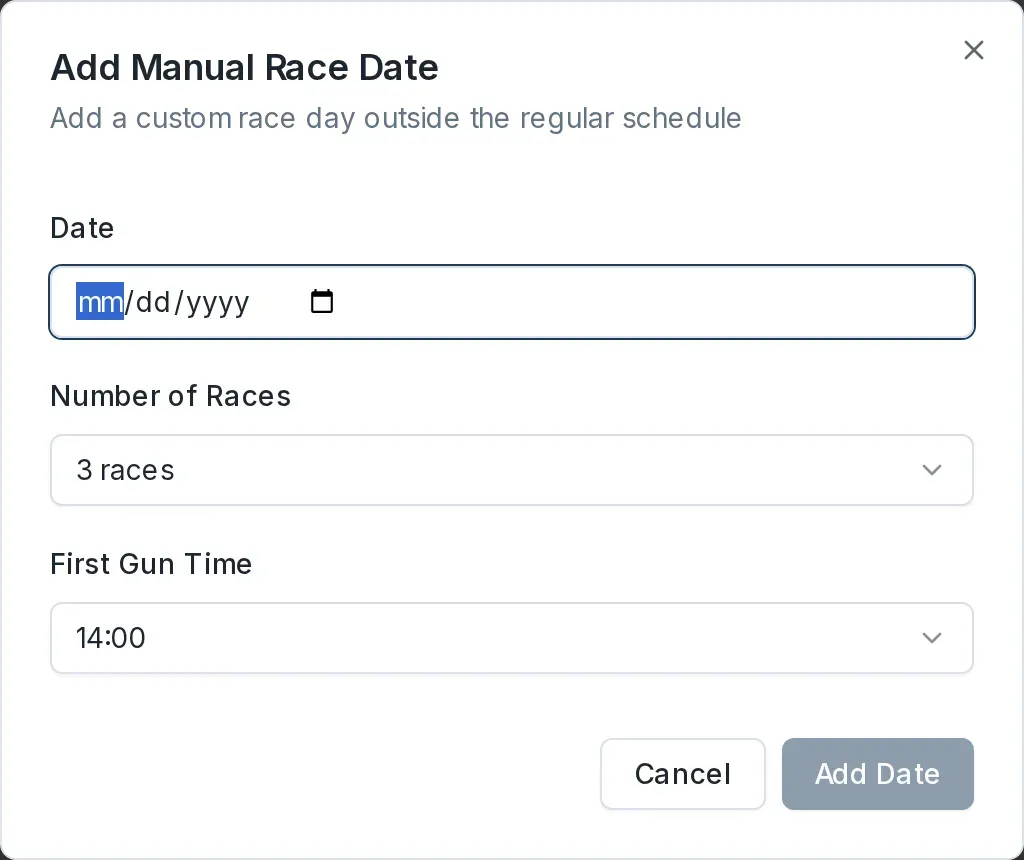
The new day is added to the list. Select Save Changes at the bottom of the page to keep it.
Add notes to a race day
- On the day's row, select Add Notes (or Edit Notes if the day already has some).
- Type the note in the Edit Race Day Notes dialog and select Save Notes.
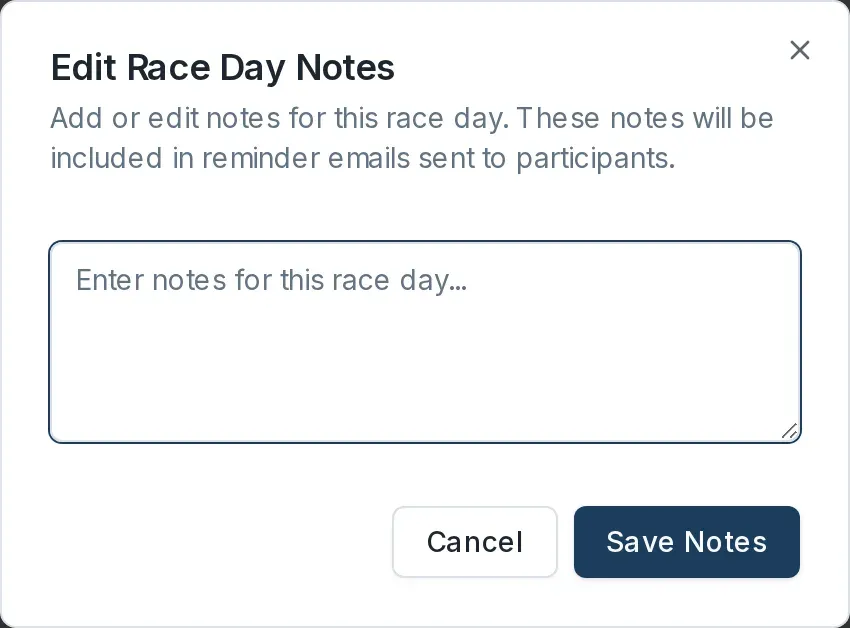
Race-day notes are included in the reminder emails sent to participants, so use them for anything sailors need to know for the day.
Mark a day complete
On a day's row, open the status dropdown and choose Completed.
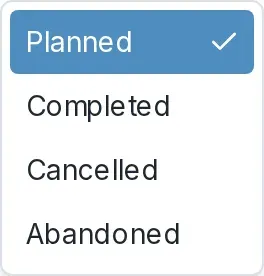
The status dropdown also has Cancelled and Abandoned for a day that did not run. See Cancel, postpone or abandon. The dropdown is locked once the day's results are published.
Remove a race date
Select the red × on the day's row. The day is marked for deletion, and the removal takes effect when you select Save Changes. A day that already has results, or any day on a published event, cannot be removed, so its delete control is not available.
Reset all race days
To rebuild the schedule from the recurring pattern you set when you created the event, select Reset All Race Days in the Race Schedule section. Dockside asks you to confirm before it rebuilds the days, so use this only when you want to start the schedule again.