Create a scoring template
This article covers how to add a scoring template to your club and, if you want, set it as the default for new events. A scoring template is a reusable set of scoring rules covering your series, regattas, and open meetings. Every event you create takes its own copy of the template, so editing a template later only affects new events. For the full picture, see How scoring templates work.
Access. You need the Official or Admin permission on the club.
Open the Scoring templates page
- Go to your club's page.
- In the Club Actions section, select Scoring templates.
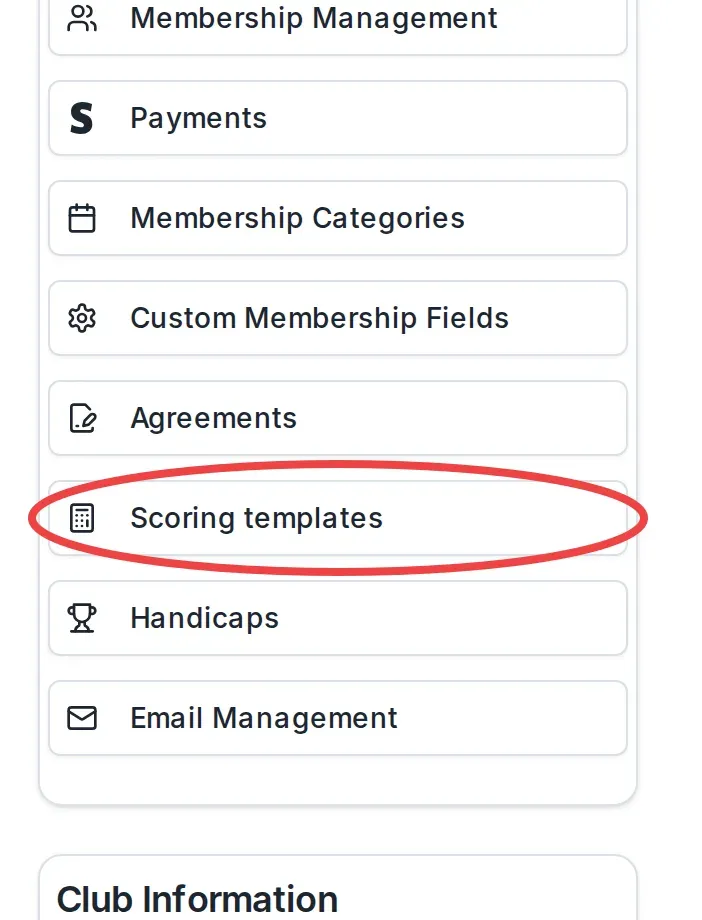
This opens the Scoring templates page for your club. It lists the templates the club already has. Each one shows its name and description, and the current default carries a Default badge.
If the club has no templates yet, you see No scoring templates yet with a single Create template button instead of a list.
Create the template
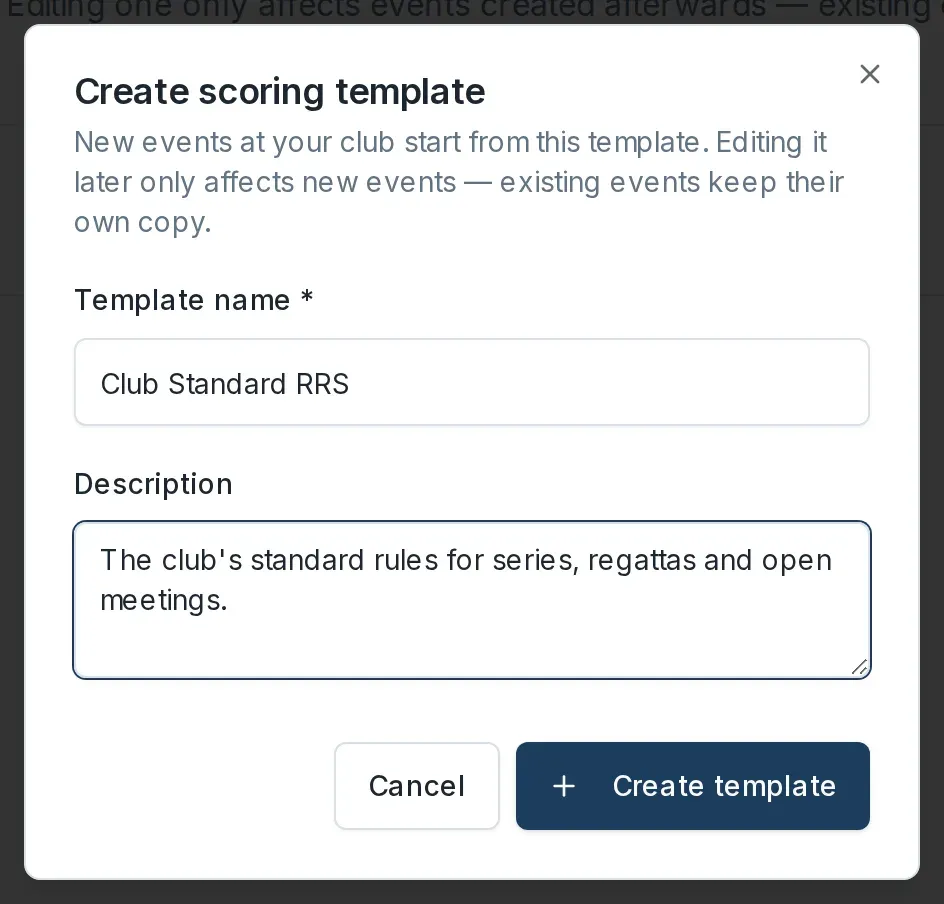
- Select Create template, at the top right of the list.
- In the Create scoring template dialog, enter a Template name. The name is required. Choose something a race officer will recognise, for example the club's standard rules or a particular fleet.
- Add a Description if you want. This is optional, and it appears under the name in the list and when someone chooses a template for an event, so use it to say when the template should be used.
- Select Create template.
The new template appears in the list. It starts with a sensible set of standard rules for all three event types, so it is ready to use straight away. To change how any code or discard is scored, see Edit a scoring template's rules.
Set it as the default
New events copy the club's default template automatically. To make your new template the default:
- Find the template in the list.
- Select Set Default.

The Default badge moves to this template. A club has one default at a time, so setting a new default removes the badge from the previous one.
Events created from now on will copy this template unless someone chooses a different one. Events that already exist are not affected: they keep the copy they took when they were created.
Rename or remove a template
- To change a template's name or description, select Edit on its row, make your changes in the Edit scoring template dialog, and select Save Changes.
- To remove a template, select the delete (bin) icon on its row and confirm in the Delete scoring template dialog. Deleting a template cannot be undone. Events already created from it are not affected, because they keep their own copy of the rules.
You cannot delete or replace the default template directly: the Set Default and delete controls only appear on templates that are not the current default. Set a different template as the default first, then delete the one you no longer need.