Clone an event
Clone an event
Cloning copies an event's settings into a new event, so you can reuse last season's setup instead of building it again. You can also bring across the people who took part.
Access. You need the Official or Admin permission on the club or association that runs the event. An admin or official of the event's host venue or host association can clone it too. Site administrators can clone any event.
To clone an event:
- Open the event you want to copy. On its Overview, select Clone Event. The Clone Event dialog opens.
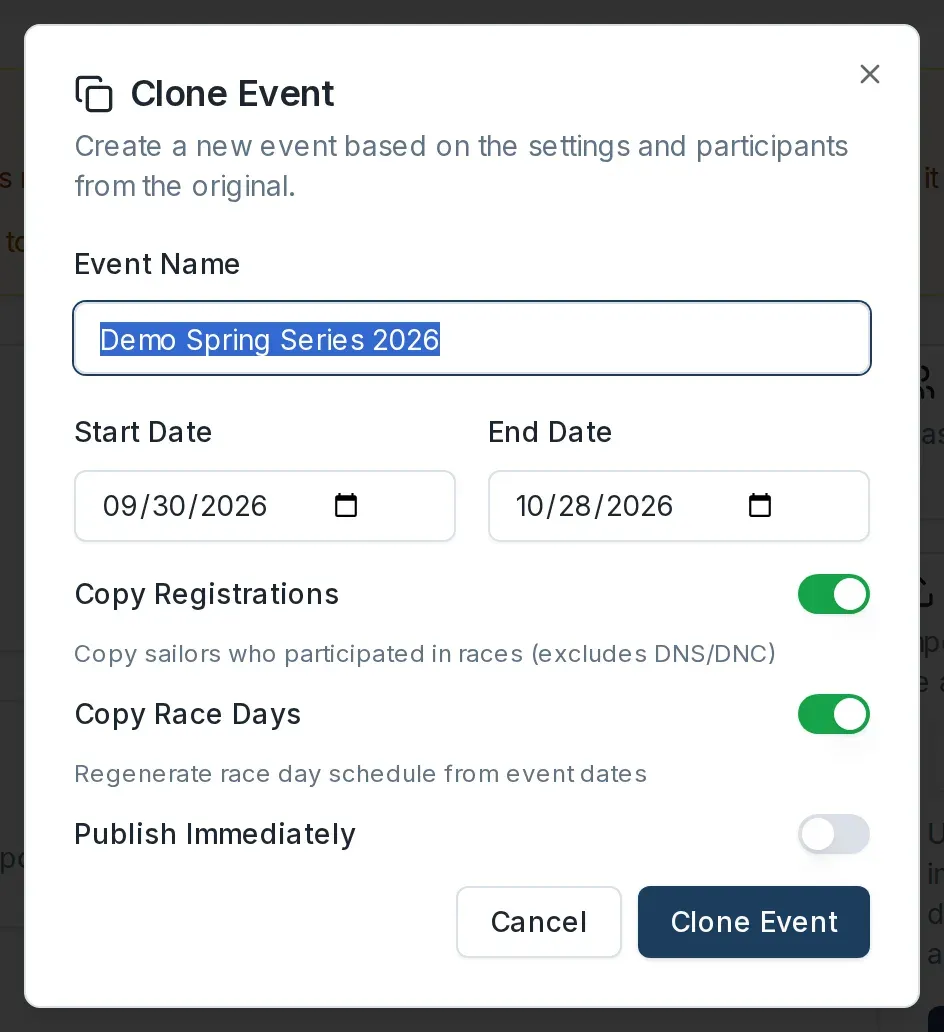
- In Event Name, change the name if you want. It starts as the original name.
- Set the Start Date and End Date for the new event. Dockside suggests dates a year on, or the next block for a series, which you can change.
- Choose what to copy with the switches:
- Copy Registrations — copies the sailors who took part in races, excluding those scored DNS or DNC. On by default.
- Copy Race Days — regenerates the race day schedule from the new dates. On by default.
- Publish Immediately — publishes the new event straight away instead of leaving it as a draft. Off by default.
- If your club uses event categories, choose one under Event Category, or leave it as No category. This field appears only when the club has categories set up.
- Select Clone Event.
When it finishes, the dialog shows Event cloned successfully with the new event's name and how many registrations and sailors were copied.
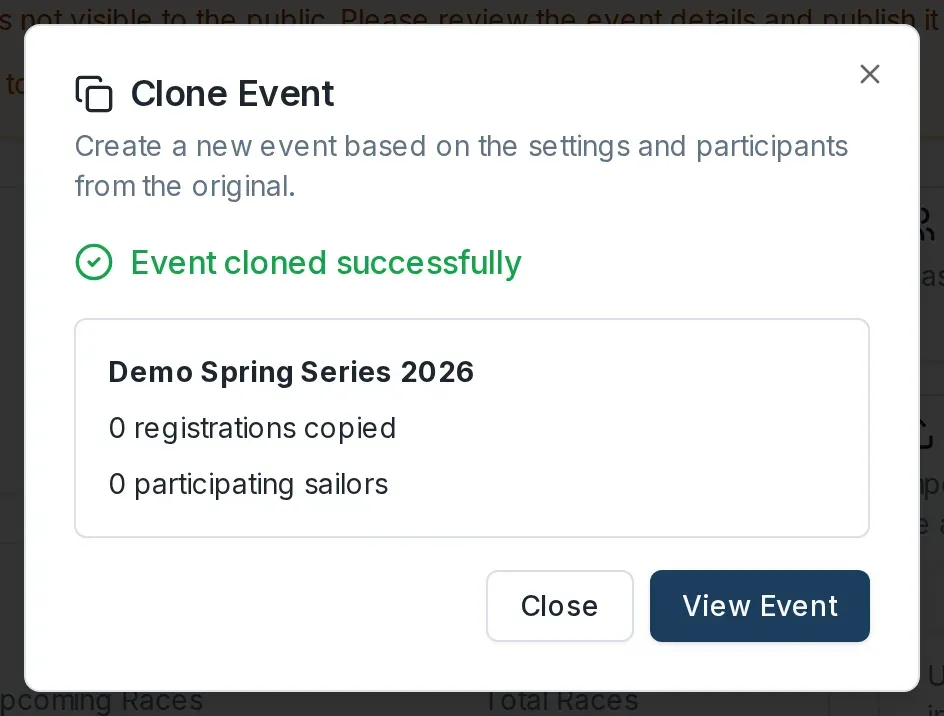
Select View Event to open the new event, or Close to stay where you are. Unless you turned on Publish Immediately, the new event is a draft, so publish it when it is ready. See Publish a draft event.
Update the event's details
Once you have created the event, you will need to update its details. See Event form fields for what every field on the edit screen does.