Choose a scoring template for an event
This article covers how to choose which scoring template an event uses. The template decides how finishes and codes become points for that event. For what a template is and how the default works, see How scoring templates work.
Access. You need the Official or Admin permission on the club running the event.
You do not have to choose a template. If you leave it alone, the event copies the club's default. Choose one only when this event should be scored differently.
When the event is created, Dockside copies the template's rules into the event. The event then has its own rules, and editing the template afterwards will not change it.
When you create the event
The Scoring template field is in the Competition Setup section of the Create Event form, just below Scoring Type.
- On the Create Event form, scroll to Competition Setup.
- Under Scoring template, select the template you want.
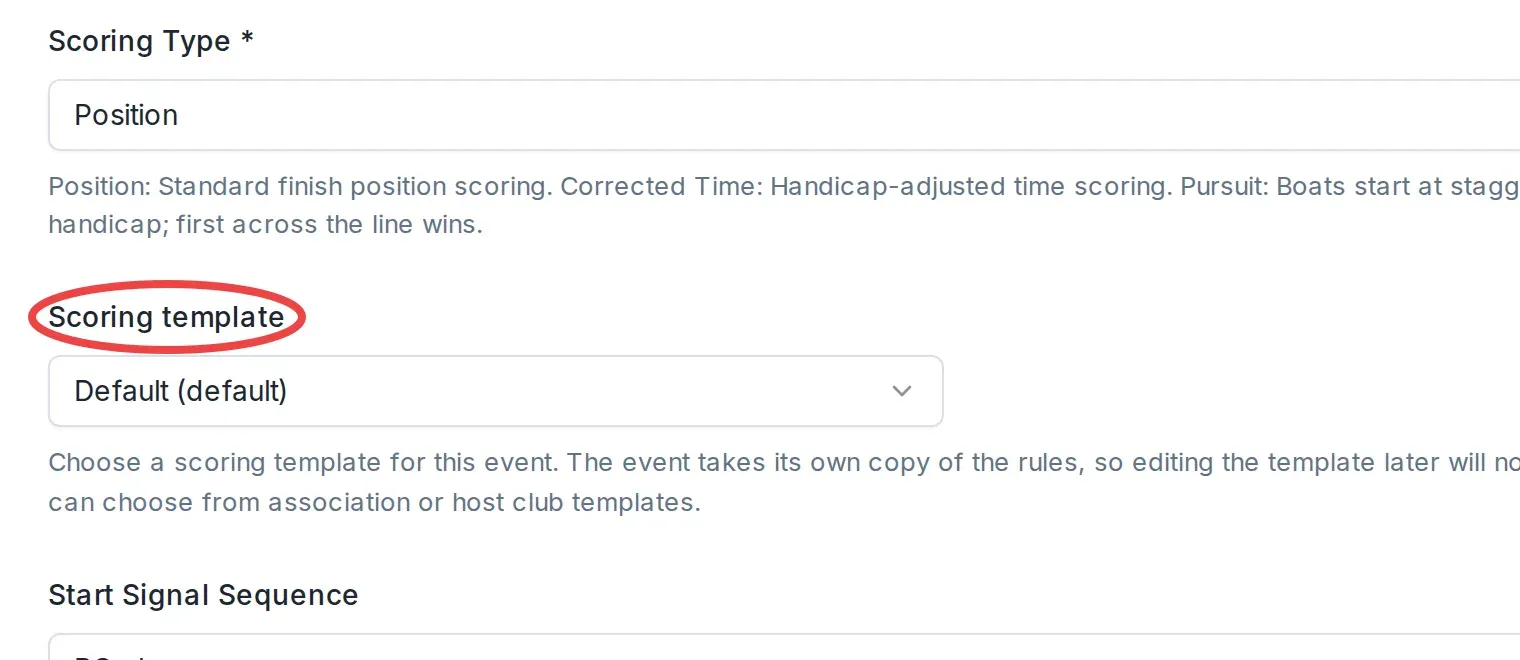
The club's default template is already selected. To use it, you do not need to do anything. Choose a different one only if this event needs different rules.
When you edit an existing event
Changing the template on an event that already exists replaces the event's rules with a fresh copy of the template you pick. This happens on the event's Scoring rules card, not on the create form's field.
- Open the event and select Edit Event.
- Open the Competition tab.
- Find the Scoring rules card. It shows which template the event's rules came from, as Based on {template name}.
- Select Change template.
- In the Change scoring template dialog, choose the template you want.
Dockside then shows Review scoring changes, a preview of what the new rules would do to this event's standings before anything is saved. Check it, then confirm to apply.
If the event's rules have drifted from its template and you want the template's current rules back, select Reset to template on the same card instead.
To change this event's rules without involving a template at all, select Edit on the card. See Edit a scoring template's rules for what the rules themselves mean.
What each option shows
The field is a dropdown. Each template is listed by name, and the club's default is marked (default). The first option, Use default scoring, attaches no template at all.
The dropdown does not show a template's rules. If you need to check what a template does before choosing it, open the club's Scoring templates page in another tab and look at its rules there. See Edit a scoring template's rules.
If the club has no scoring templates, you see No scoring templates found for this club. Standard position scoring will be used. To use custom rules, a club admin needs to create a scoring template first.
Events run by an association at a host club
When an event is owned by a class association but hosted by a club, you can choose a template from either. The dropdown groups them by where they come from: Owner organisation templates for the organisation that owns the event, and Host club templates for the club hosting it.
You cannot use a template belonging to any other organisation. If you pick one that is not offered for this event, Dockside explains that the template belongs to a different organisation and that an event can only use a template from its owning organisation or its host club.
If no template is selected
If no template is chosen and the club has no default, the event uses Standard Position Scoring: 1st place is 1 point, 2nd is 2 points, and so on, with no custom code or discard rules. To score codes like DNF or OCS your own way, choose a template instead.