Add or remove races on a race day
An event's schedule assumes a set number of races per day, but on the water the race committee often fits in an extra race or runs fewer than planned. This article covers setting the expected number in the scheduler, adding an extra race on the day, and deleting a race that was never sailed.
Access. You need the Admin, Official, or Race Officer permission on the club that runs the event.
Set the expected races per day
Every race day is scheduled with the number of races set on the event. To change it:
- Open the event and select Edit Event at the top right. The Edit Event screen opens.
- Open the Schedule tab. The Race Schedule section holds the event's recurring pattern.
- Races Per Day is the number of races each race day is scheduled with, from 1 to 10.
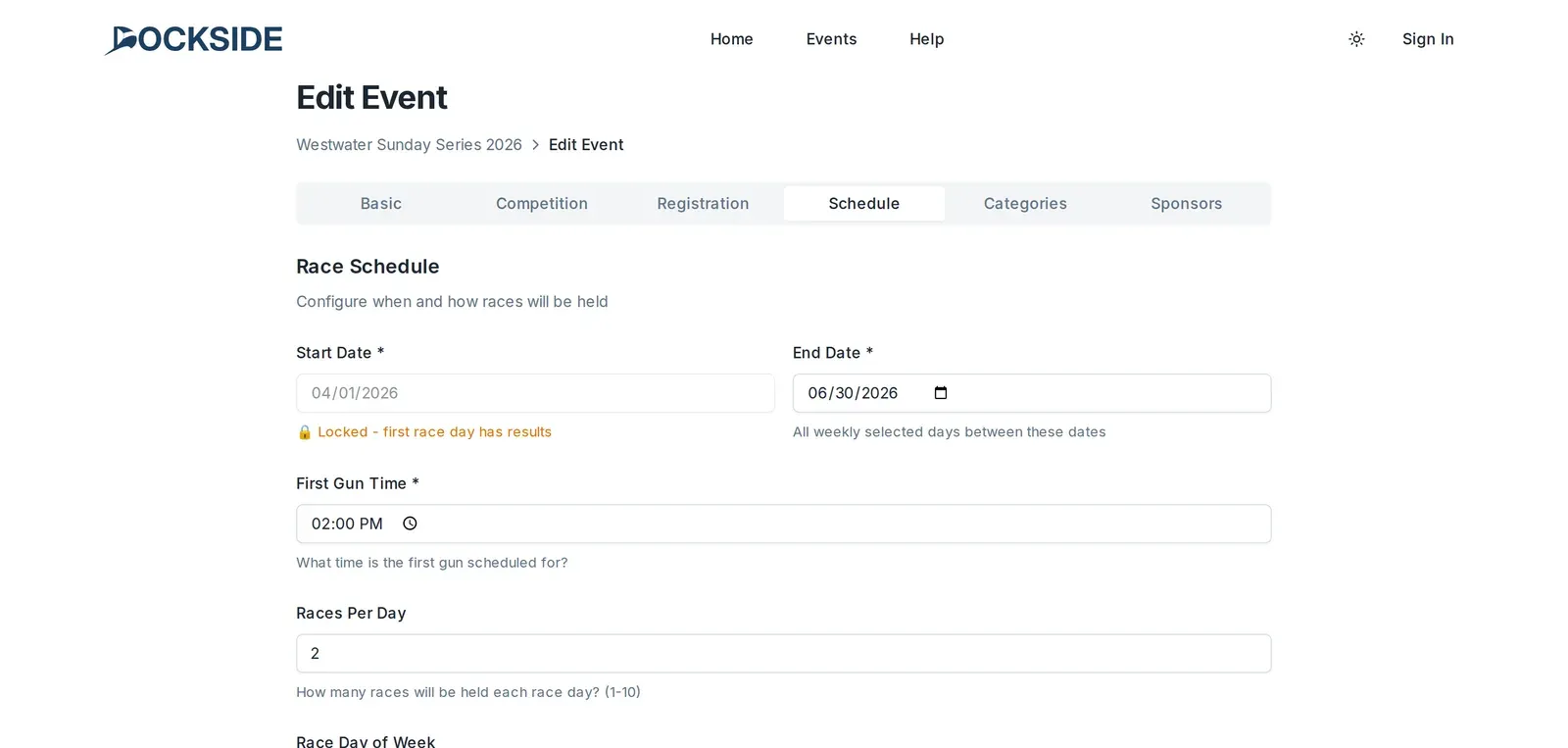
To adjust one day rather than the whole event, go to the Race Days list further down the same tab. Each day's row has its own races dropdown (1 race, 2 races, and so on). Choose the number for that day, then select Save at the bottom of the page. Schedule changes are held as pending until you save.

A day whose results have been published shows a red Published tag and its controls are locked. The same list also adds, removes, and cancels whole race dates: see Manage race days.
Add a race on the day
The quickest way to add an extra race is on the race day's results screen.
-
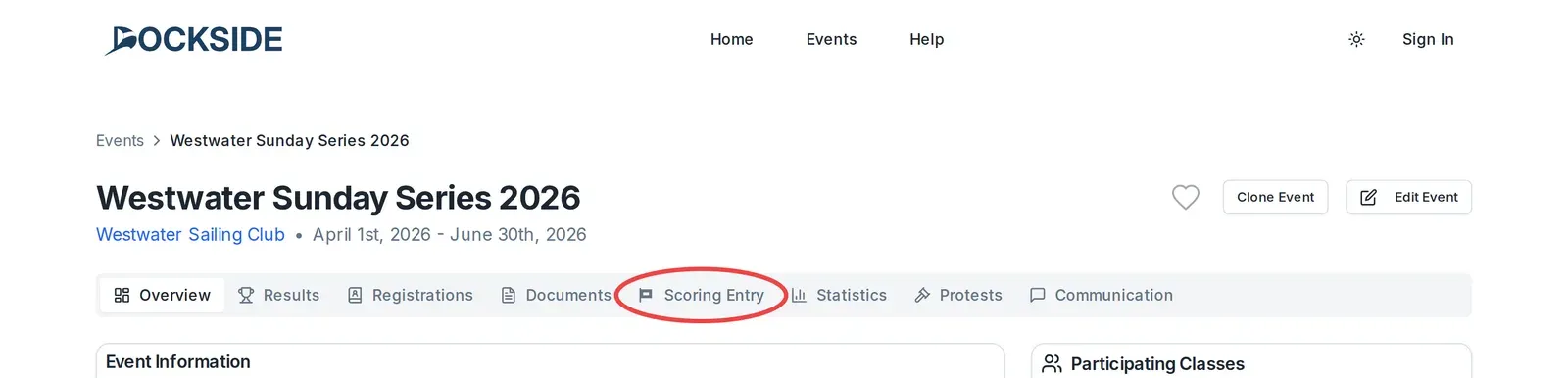
Open the event and select the Scoring Entry tab.
-
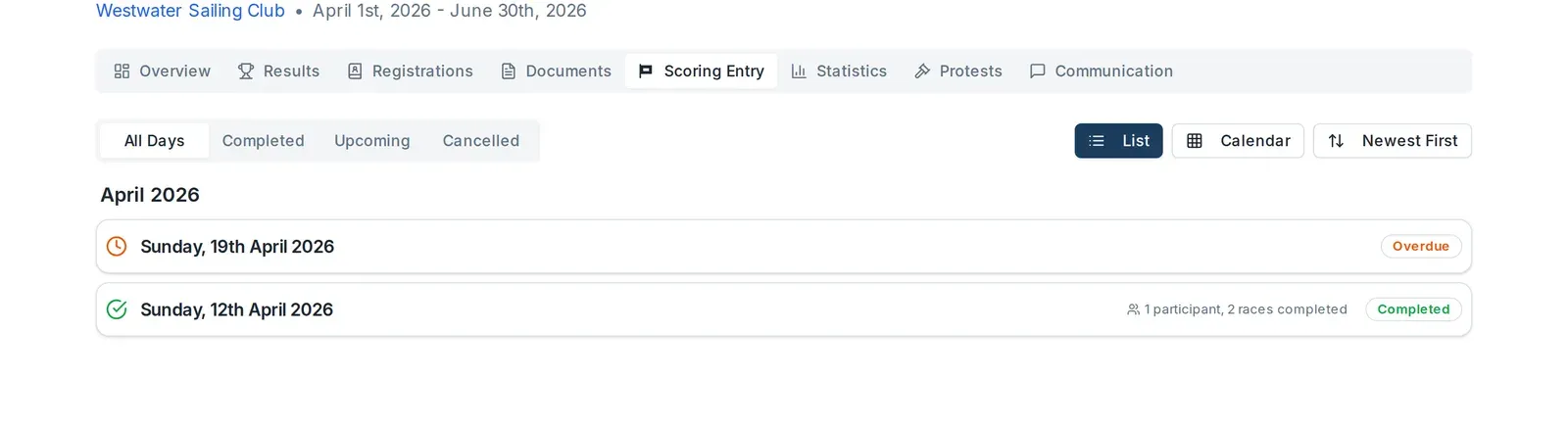
Choose the race day from the list. The Race Day Results screen opens on its Entry tab.
-
The day's races appear as a row of tabs (Race 1, Race 2, and so on). Select Add Race at the end of the row.
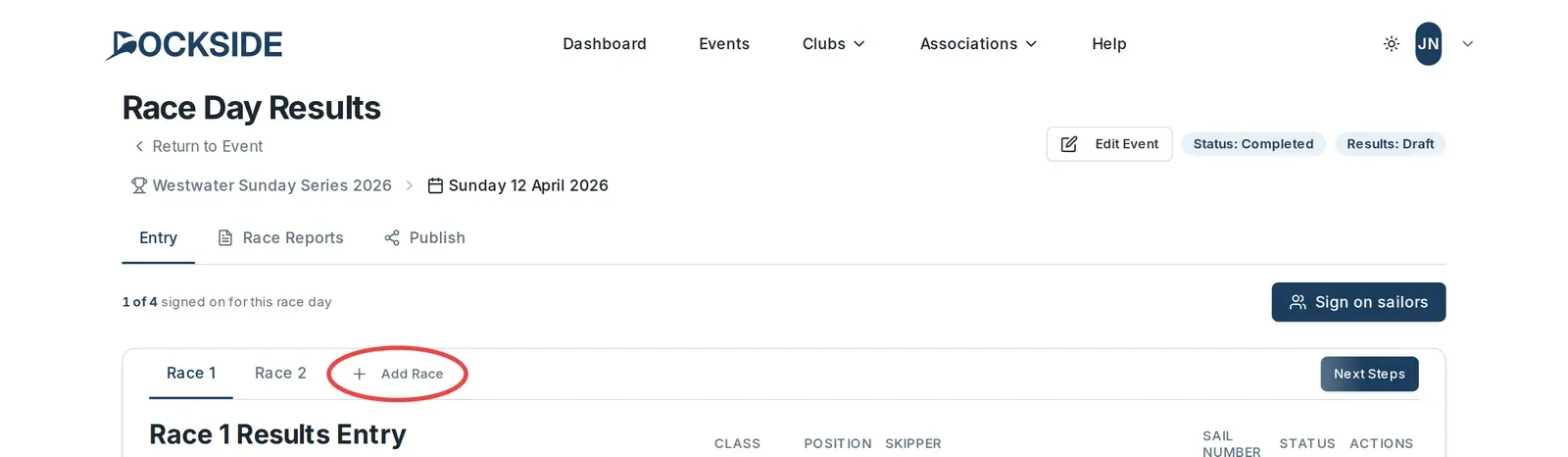
Dockside adds the race straight away and the screen refreshes. The new race appears as the last tab in the row, numbered with the next race number. Race numbers run through the whole series, so a race added to an earlier day also renumbers the races on the days after it.

You can enter its results straight away: see Enter results for a race day.
Delete a race
A race can only be deleted from the end of the day's list, one at a time, and only while it has no results. When the last race can be deleted, a red bin icon sits to the right of its tab.
-
On the Entry tab, select the red bin icon next to the last race's tab.

-
The Delete Race dialog opens and asks:
Are you sure you want to delete this race? This action cannot be undone and will renumber all subsequent races in the series.

-
Select Delete Race.
The race and its tab disappear, and the races after it in the series renumber to close the gap.
If the race already has results
A race with results shows no bin icon and cannot be deleted. Remove its results first, on the same Entry tab:
- Open the race's tab and select the bin on each result row you want to remove. The row is struck through and marked Delete Pending, and an Unsaved changes notice appears above the list.
- Select Save Now to confirm the deletions.
Once the race has no results, the bin icon shows next to its tab and you can delete the race as above.
Race days with published results
Once a day's results are published, you cannot add or delete its races. Selecting Add Race on a published day shows an error:
This race day's results have already been published. Adding races would affect the integrity of the published results.
For what publishing locks and how to publish, see Publish results.
Removing a whole day
Marking a race day Cancelled or Abandoned, or removing its date, also removes its races, and the schedule renumbers. Both are done from the Race Days list on the Schedule tab. See Manage race days and Cancel, postpone or abandon.