Edit an event's scoring rules
This article covers how to change the scoring rules for one event: the codes, the discards, and which template the event's rules came from. You can do this at any point, including part-way through a series that has already been raced.
Every event holds its own copy of the rules, taken from a template when the event was created. Changing them here affects this event and nothing else. To change the rules for future events instead, edit the template: see Edit a scoring template's rules.
Access. You need the Official or Admin permission on the club running the event.
Find the scoring rules
- Open the event and select Edit Event.
- Open the Competition tab.
- Find the Scoring rules card.
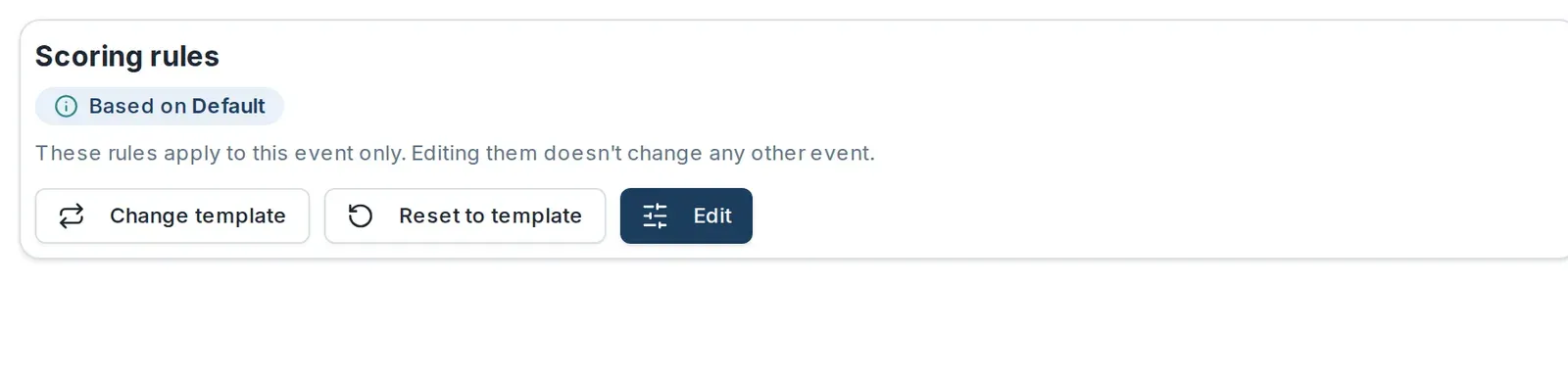
The card tells you where this event's rules came from, as Based on {template name}, and reminds you that These rules apply to this event only. Editing them doesn't change any other event. If the event was never attached to a template, it says Not based on a template instead.
The card offers three actions, covered below: Edit, Change template, and Reset to template.
Change how this event scores
Select Edit on the card. The Scoring rules dialog opens, showing Based on {template name}. These rules apply to this event only.
This is the same editor used for a template's rules, with the same tabs and sections, so the steps are identical. See Edit a scoring template's rules for what each section and each Scores as option means.
The button here is Save scoring rules, not the Save rules you get when editing a template. It stays greyed out until you actually change something, and turns amber once you have, if the event already has results: a change from here will move real standings.
When you select Save scoring rules, what happens next depends on whether the event has results yet:
- No results recorded. The rules are saved and there is nothing to re-score.
- Results already recorded. Dockside shows Review scoring changes before saving anything. See below.
Review the effect before it is saved
Review scoring changes is a preview. Nothing has been written at this point, and you can close it to abandon the change.
It tells you how many races the change touches, for example Editing these rules changes scores in 4 races, and lists the sailors whose standings move, with columns for Rank, Sailor, Net, and Change. Read it as the answer to "who does this actually affect".
To go ahead, type layline in the confirmation box and confirm. The typed word is deliberate: this re-scores races that have already been sailed, so it should not be a single misplaced click. The change is recorded under your name.
Race days already published stay as published until an official republishes them. The points behind them are re-scored, but the published view does not change on its own. If you want sailors to see the new standings, republish the affected race days afterwards. See Publish results.
If some results cannot be re-scored, Dockside says so rather than reporting a clean success, with Scoring rules saved — but some results didn't re-score. Check the affected races before telling anyone the standings are final.
Base the event on a different template
Use this when the event should follow a different set of club rules altogether, rather than a tweak to its own.
- Select Change template on the Scoring rules card.
- In the Change scoring template dialog, choose the template you want. The club's default is marked (default).
The dialog explains what it is about to do: The chosen template is copied into this event's own rules. If the event has results, it adds that you will review the standings impact before anything is saved, and Review scoring changes opens as above.
Note this replaces the event's rules with a copy of the template. Any changes you had made to this event's own rules are overwritten.
Put the event back on its template
If the event's rules have drifted from the template and you want the template's current rules back, select Reset to template on the card. This takes a fresh copy of the template the event is based on.
As with any other change, if the event has results you will see Review scoring changes first.
Which one do I want
| You want to | Use |
|---|---|
| Fix how this one event scores a code or handles discards | Edit on the Scoring rules card |
| Move this event onto a different set of club rules | Change template |
| Undo this event's changes and take the template's rules again | Reset to template |
| Change the rules for events you have not created yet | Edit the template |