Create an event
This article covers how to create a single-day Open event scored by finishing position. The same form creates every kind of Dockside event, so this guide takes the most common path: an Open event with position scoring and one class.
Access. You need the Official or Admin permission on the club that will run the event.
Create the event
- Go to your club's page and select Create Event, near the top right.

The Create New Event form opens. It is a single page with labelled sections — Basic Details, Competition Setup, Registration & Access, Event Configuration, and Race Schedule — that you scroll through in order. There are no tabs on this form.
- In Basic Details, enter the Event Name, then choose the Event Organiser. Dockside selects you by default once the list has loaded. The organiser can approve registrations for Open and Regatta events.
- Still in Basic Details, set Event Type to Open. An Open event is a single day of racing, so Dockside sets the end date to match the start date.

To set up a different kind of event instead, see Create a series, Create a regatta, or Create a non-racing event.
- In the Competition Setup section, set Scoring Type to Position. This scores boats by their finishing position. Leave Scoring template as it is. If you do not choose one, the event copies your club's default template.

- Under Classes, select Select classes, search for a class, and choose at least one. A position racing event requires at least one class before you can create it. Handicap and pursuit races do not need a class — any class can enter.

- In the Registration & Access section, set the Membership Requirement and Sign-on Method. For an event open to anyone, choose No membership required and Online.
- In the Race Schedule section, set the Start Date, the First Gun Time (the time of the first start, which defaults to 14:00), and Races Per Day.
- Leave the Event Status field in the Event Configuration section alone. It has no effect when you create an event — every new event is saved as a draft regardless of what you choose here. You publish the event in the next step.
- Select Create Event at the bottom of the form.
Dockside saves the event, shows the message Event created successfully, and takes you to the event's page. The event now exists, but it is a draft — sailors cannot see it yet.
Publish the event
On the event page you will see an amber notice headed Event is in Draft Status:
This event is currently in draft mode and is not visible to the public. Please review the event details and publish it to make it available to sailors.
To make the event visible, you switch to the edit screen:
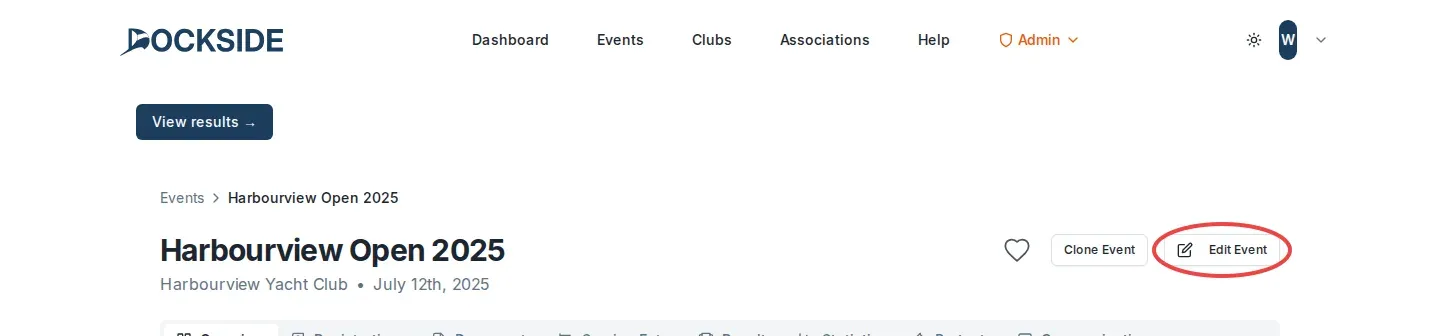
- Select Edit Event, near the top right of the event page.
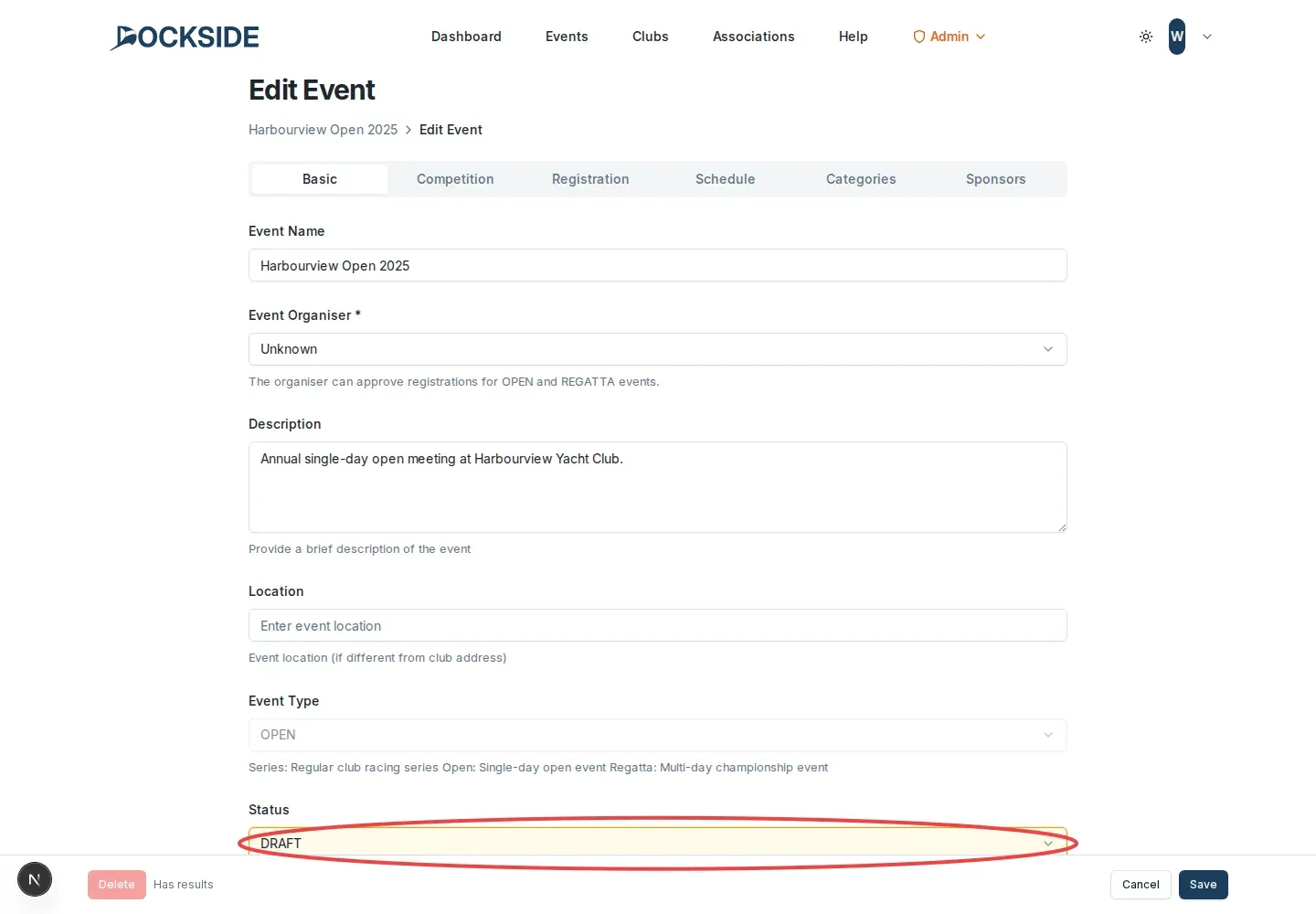
- Open the Basic tab. The edit screen is split into tabs, unlike the single-page create form you just used.
- Set Status to Published. (On the edit screen this field is labelled Status, not Event Status.)
- Select Save.
The event is now published and visible to sailors.
Create a different kind of event
The Create New Event form handles every event type. To change what you are creating, change two fields:
- For a multi-week season, set Event Type to Series (see Create a series). For a multi-day event, set it to Regatta (see Create a regatta).
- To score by handicap rather than position, set Scoring Type to Corrected Time or Pursuit. When you choose one of these, the Classes section is replaced by a Handicap Type field, because any class can enter a handicap event.
If you cannot see the Create Event button
You need the Official or Admin permission on the club. If the button is missing, ask a club admin to give you the Official permission.
Update the event's details
Once you have created the event, you will need to update its details. See Event form fields for what every field on the edit screen does.