Build a duty roster
This article covers how to build a single duty roster: create it, choose its allocation strategy, lay out the race team, and allocate members.
Access. You need the Official or Admin permission on the club.
The roster list lives on the club's Season plan, at Duty Rosters in the club's officials tools.
Create the roster
- On the Season plan, in the Duty rosters section, select New roster. The New roster dialog opens.
- In Name, give the roster a name, for example your season or event.
- Set the Start date and End date. These are the date window the roster covers.
- In Default allocation, choose how members get their duties: Direct — you assign, First-come — members claim, or Multiple choice. If you are unsure, see How duty allocation works.
- Select Create.
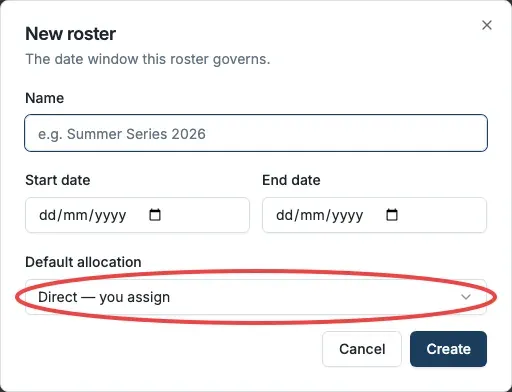
Dockside creates the roster and opens it so you can lay out the duties.
Lay out the race team
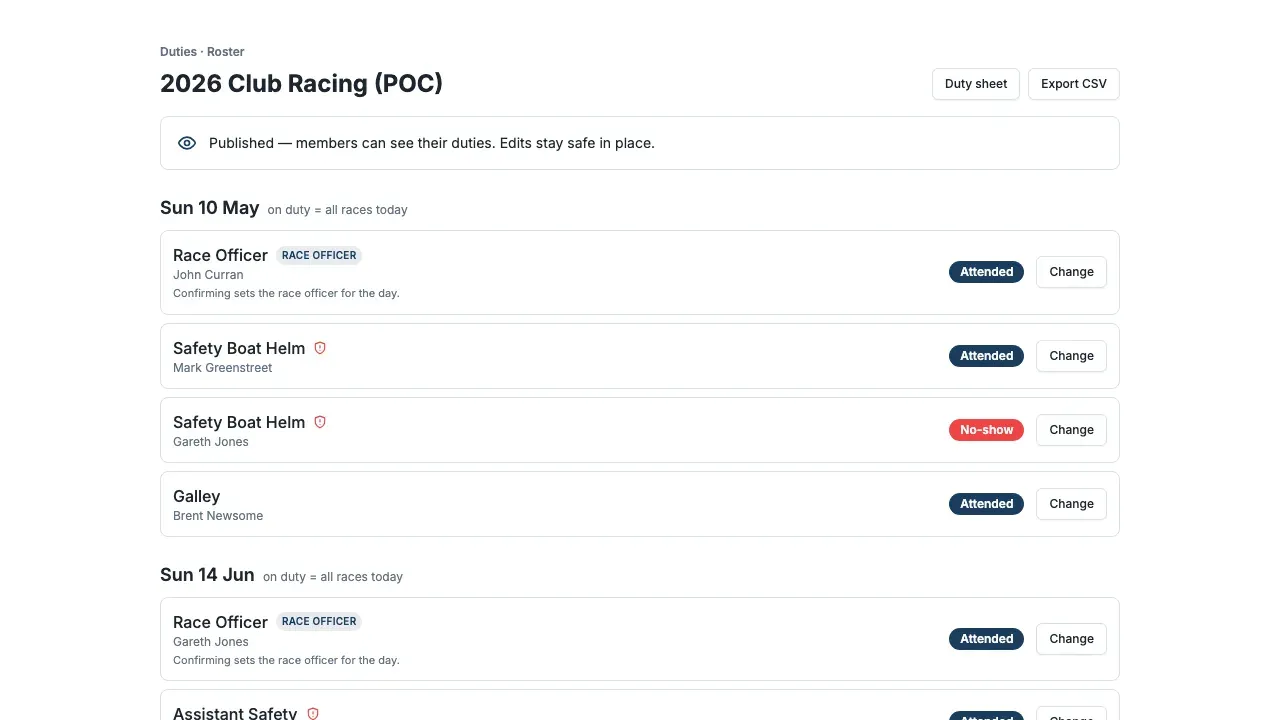
A roster is a set of duties across its race days. Add the roles you need per race day (for example Race Officer, Safety Boat Helm, Galley) from your duty types and team templates. Each role becomes a slot to fill.
Allocate members
How you fill the slots depends on the strategy you chose:
- Direct: assign each slot to a member yourself.
- First-come: publish the roster and let members claim the open slots.
- Multiple choice: fill from members' stated availability. See Set your duty availability.
Once allocated and published, members can see their duties, and you can still change any assignment in place.
Build a whole season at once
If you are laying out many race days with the same team, use Roster a period instead of building one roster at a time. See Roster a period.