Create a series
This article covers how to create a Series event: a season of racing held on the same day each week. It builds on Create an event, which covers the parts common to every event. This guide focuses on what is different for a series.
Access. You need the Official or Admin permission on the club that will run the series.
Set up the series
- Go to your club's page and select Create Event.
- Fill in Event Name and Event Organiser as you would for any event.
- In Event Type, choose Series.

-
In the Competition Setup section, set Scoring Type and choose your classes, the same way as for a single race.
-
In the Race Schedule section, set the Start Date and End Date. Dockside sets the end date to one month after the start by default, which you can change.
-
Choose the Race Day of Week. This field appears only for Series events. Until you choose a day, the preview shows this message:
Please select a Race Day of Week above to generate race days for this Series event.

- Set the First Gun Time and Races Per Day.
Check the generated race days
When you choose a race day, the Race Days Preview lists one race day for each matching weekday between the start and end dates. A one-month series on Saturdays generates 5 race days. Each row shows the date, its status (Pending), the number of races, and the first gun time.
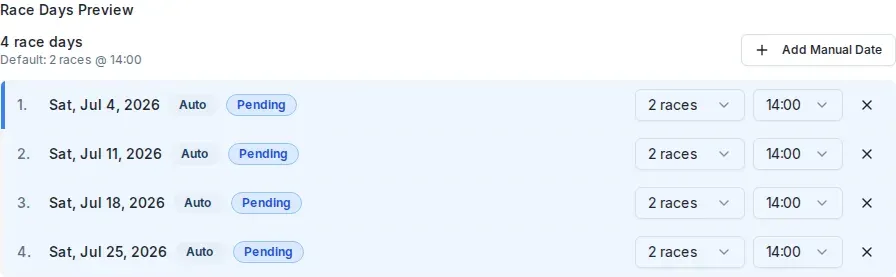
From the preview you can:
- Change the races per day or the first gun time for a single race day in its row.
- Select Add Manual Date to add a race day that does not fall on the chosen weekday.
- Change the Start Date or End Date to add or remove weeks.
Sign-on reminders
For a series, Enable Sign-on Reminders is switched on by default, and a Sign-on Reminder Hours field appears. This sends a reminder email to participants the set number of hours before each race day, between 24 and 72. Turn the switch off if you do not want reminders.
Discards
You do not set discards on this form. Discards come from the Scoring template you choose in the Competition Setup section. The series takes its own copy of that template's rules when you create it. To change how discards work, choose a different scoring template, or ask a club admin to set one up.
Create and publish the series
When the schedule looks right, select Create Event. Dockside saves the series as a draft, the same as any event. To make it visible to sailors, select Edit Event on the event page, open the Basic tab, set Status to Published, and select Save. See Create an event for the publish step in full.
Update the event's details
Once you have created the event, you will need to update its details. See Event form fields for what every field on the edit screen does.