Add sponsors to an event
You can attach sponsors to an event so their logos show on the event's TV display. Sponsors come from your organisation's sponsor library, and each one is given a tier that sets how prominently it appears. This article covers attaching a sponsor to an event and removing one.
Access. You need the Admin or Official permission on the club that runs the event.
Before you start
Event sponsors are chosen from your organisation's sponsor library. If the library is empty, the Add Sponsor button is disabled and the tab shows "No sponsors available. Add sponsors to your organisation's library first." Add them in your organisation's settings, under Sponsors, before you attach any to an event.
Attach a sponsor
- Open the event. On its Overview, select Edit Event.
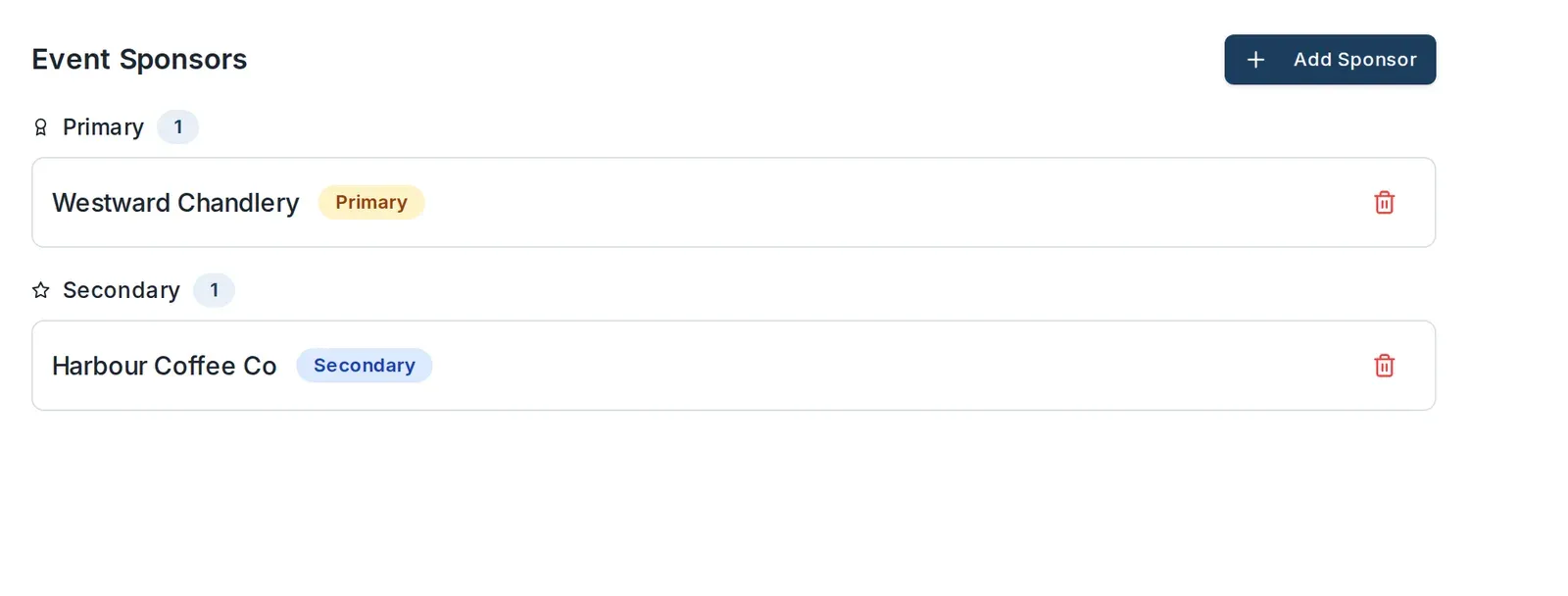
- Open the Sponsors tab. It is headed Event Sponsors.

- Select Add Sponsor.
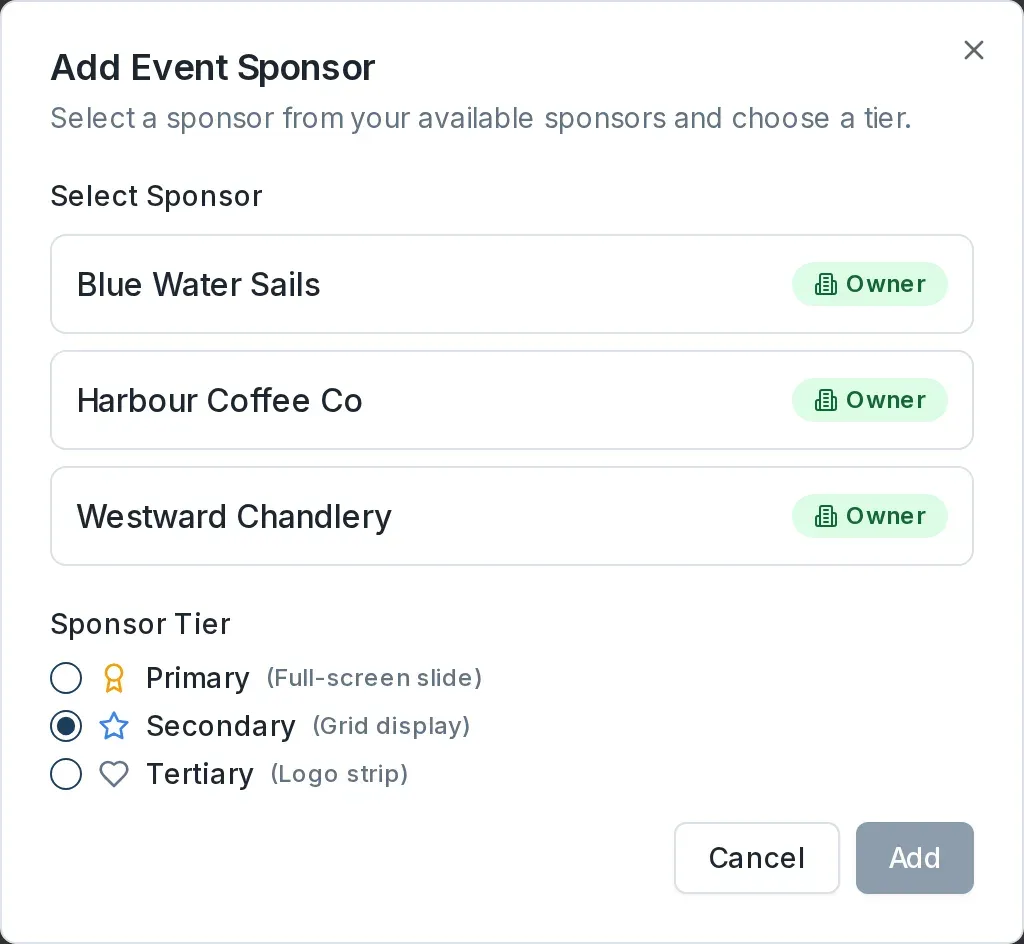
- In the Add Event Sponsor dialog, choose a sponsor under Select Sponsor. Each one carries an Owner or Venue badge showing which organisation it belongs to.
- Under Sponsor Tier, choose how prominently the sponsor should show:
- Primary gets a full-screen slide.
- Secondary shows in a grid.
- Tertiary shows in a logo strip.
- Select Add.
The sponsor appears in the list, grouped under its tier. Add as many as you need, in any tier.
Where sponsors show
Event sponsors appear on the event's TV display carousel. The tier sets how each one shows: a Primary sponsor gets its own full-screen slide, Secondary sponsors share a grid, and Tertiary sponsors run along a logo strip.
Remove a sponsor
On the sponsor's row, select the bin. Dockside asks you to confirm, and reminds you that removing a sponsor takes them off the event's TV carousel. Select Remove to confirm.
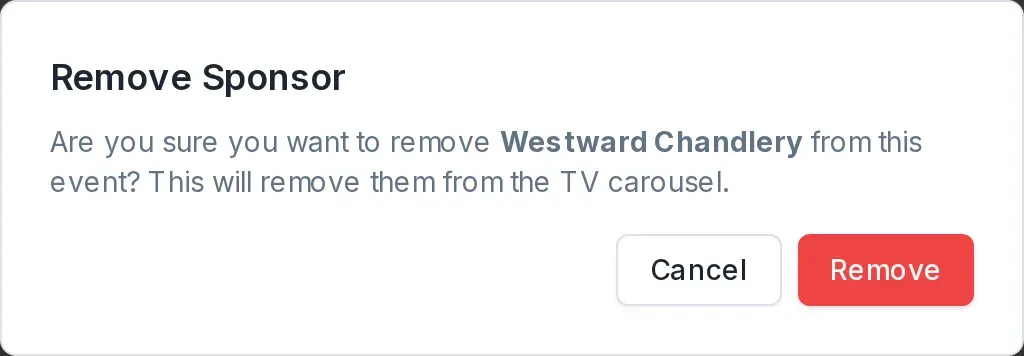
Removing a sponsor from the event does not delete it from your organisation's library, so you can add it back later or use it on another event.