Import results from a file
This article covers how to import race results into an event from a Sailwave (.blw) or JSON file. Dockside reads the file, matches each competitor to a sailor, and shows you every change day by day. Nothing is saved until you confirm, so you can upload, review, and back out with no effect on the event.
To type results in by hand instead, see Enter results for a race day.
Access. You need the Admin, Official, or Race Officer permission on the club that owns the event, or on its host venue. The importer is only available for racing events (Open, Series, or Regatta).
Open the importer
- Open the event. On the Overview tab, scroll to the Results Import card in the right-hand column.
- On the card's Import tab, select Import Results.
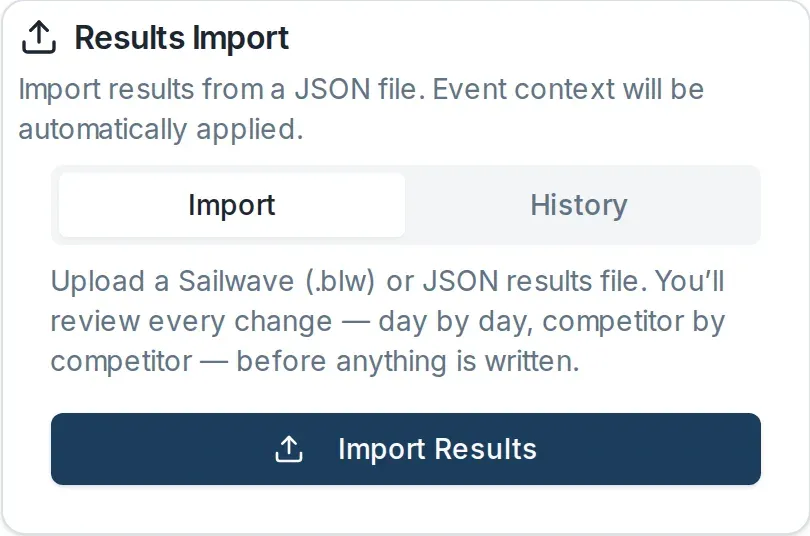
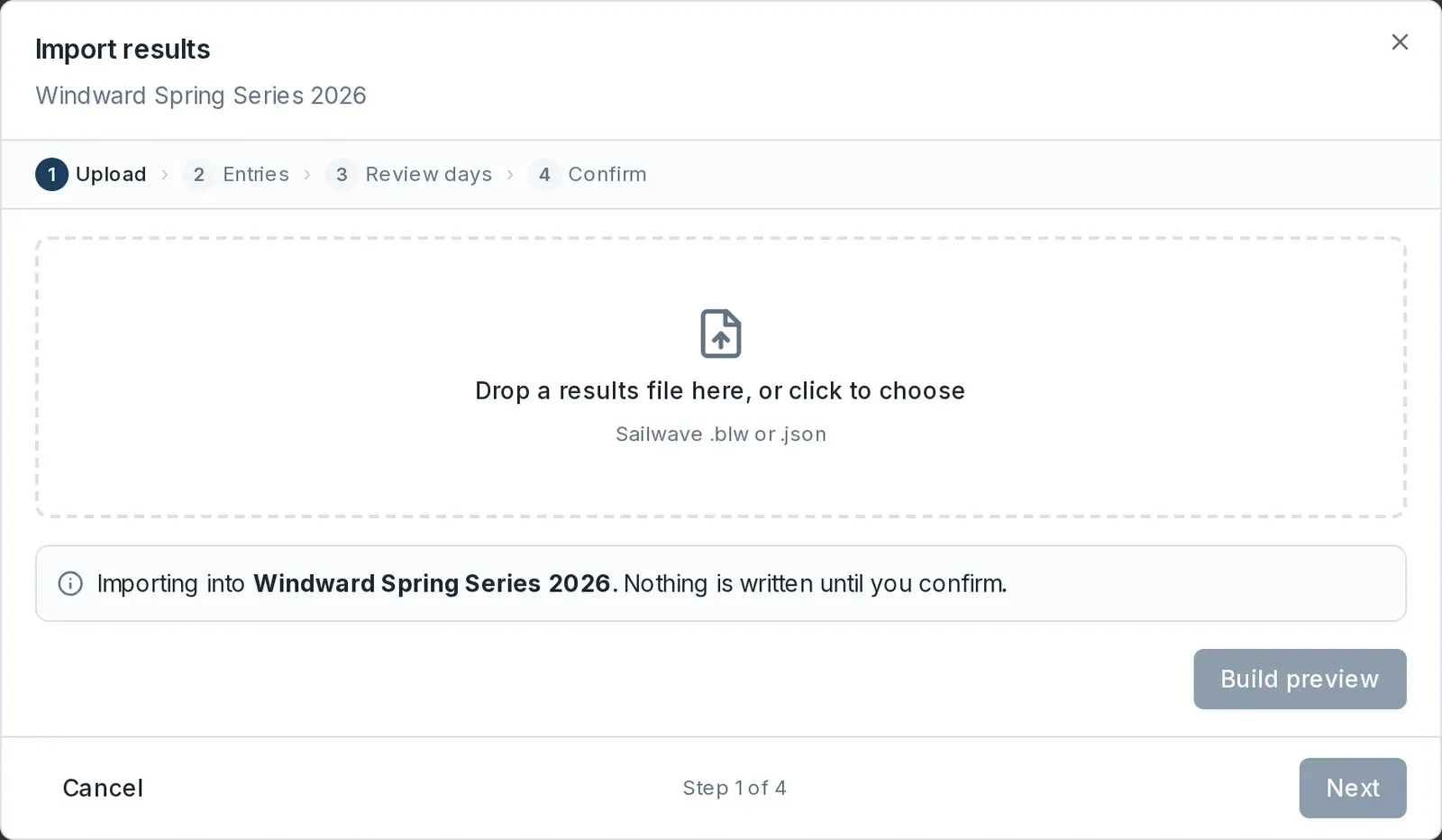
The Import results wizard opens. It has four steps, shown across the top: Upload, Entries, Review days, and Confirm. You can move back and forth with Back and Next, and leave at any time with Cancel.
Upload your file
- On the Upload step, drag your file onto the drop area, or select it to browse. Dockside accepts a Sailwave .blw file or a .json results file.
- Select Build preview.
Dockside parses the file and shows what it found: the source format, the series title, the venue, the number of races, and the number of entries. Any parse or merge warnings appear here in an amber panel. This is a dry run: it reads the file but writes nothing.
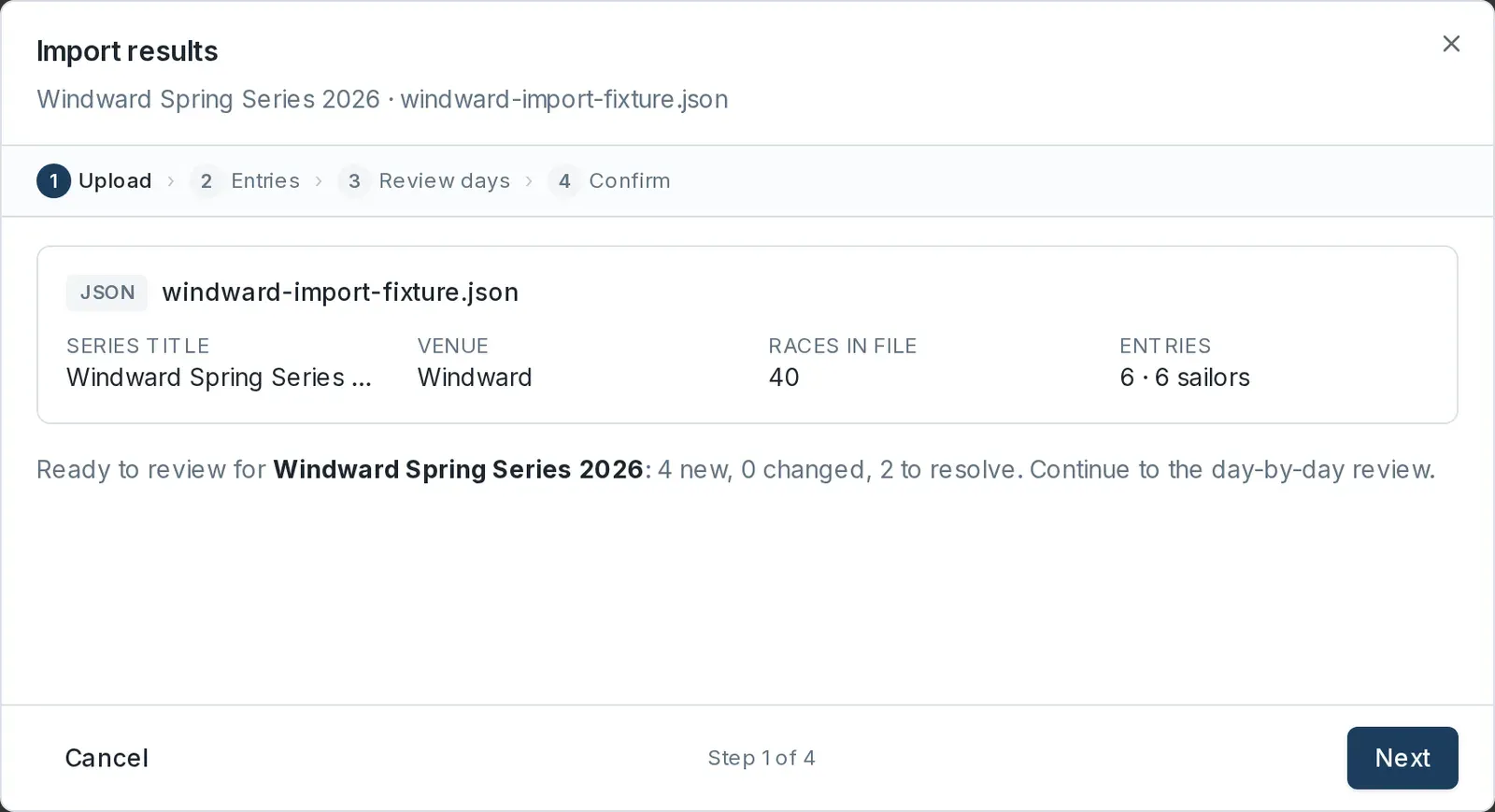
Check the summary matches the file you meant to upload, then select Next.
Match the entries
On the Entries step, Dockside matches every competitor in the file to a sailor registered for the event. Competitors are grouped by how confident the match is:
- Matched to a registration (green). The competitor is already registered for this event. Nothing to do.
- Needs confirmation (amber). The name or sail number looks like a sailor Dockside knows, but not one registered for this event. Pick the suggested sailor, or resolve it yourself.
- Unknown — not registered (red). Dockside cannot place the competitor. For each one, choose Link an existing sailor…, Create a new registration, or Skip — don't import this competitor.
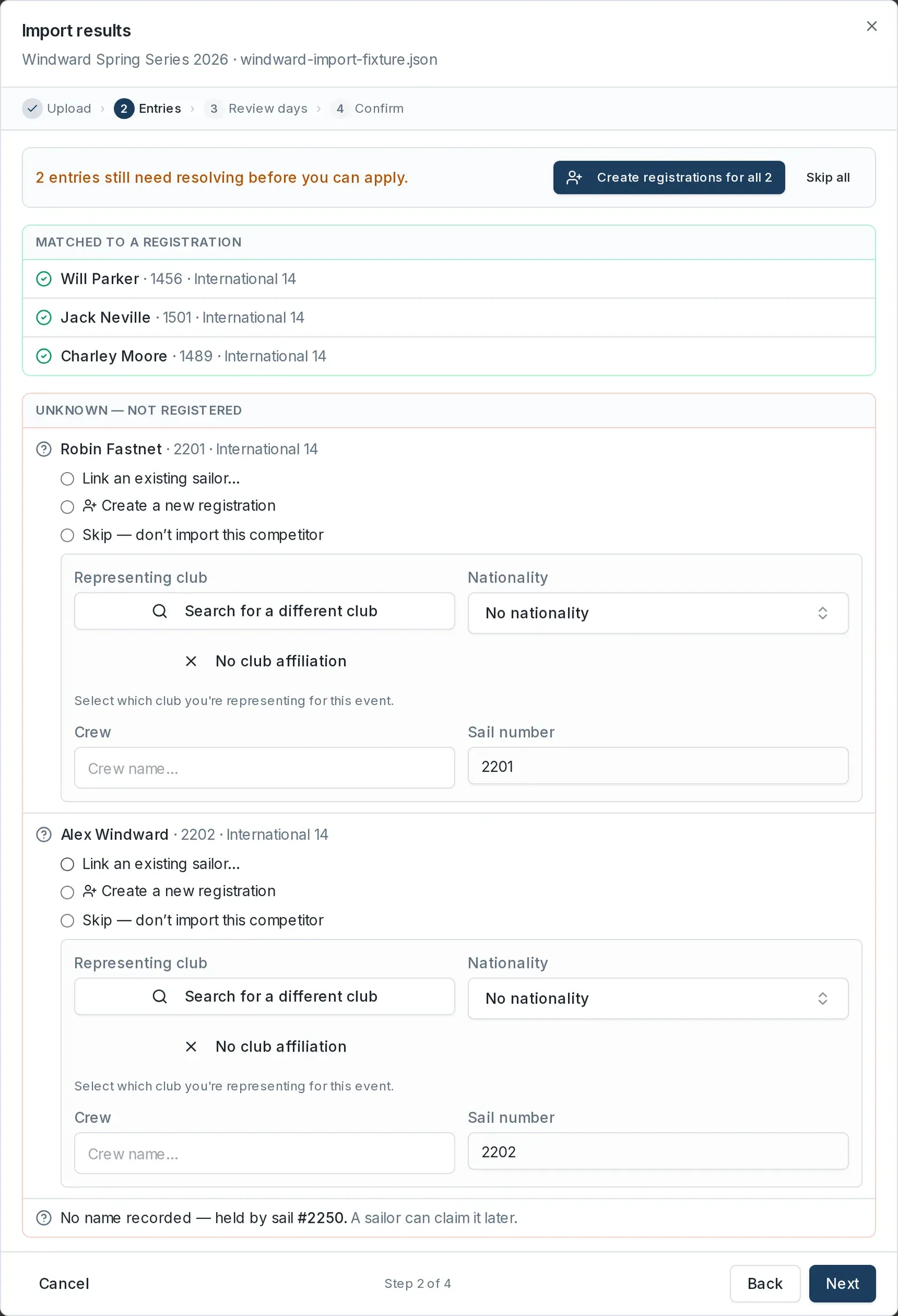
A banner at the top counts how many entries still need resolving. To clear them in one go, use Create registrations for all or Skip all. You cannot apply the import while an accepted result belongs to an unresolved competitor.
A row in the file with a sail number but no name is held by its sail, shown as "No name recorded — held by sail". Dockside imports it as an unnamed result that a sailor can claim later. See Record an unknown boat for how claiming works.
When every entry is resolved, select Next.
Review the days
The Review days step lists every race day, with a summary of the changes: how many results are new, changed, unmatched, unchanged, or already in DB only. Race days that already exist in the event but are not in your file show as In event, not in file and are left untouched.
Each day the file covers shows its status, its race count, and the change counts. Use Accept day or Reject day to include or exclude a whole day, or Approve all and Reject all for every day at once.

Select a day to open its detail. Each race lists its finishers with Class, Position, Skipper, Sail Number, Status, and an Include column. Accepted rows are marked Accepted; an unmatched competitor's rows show Unmatched and are set to Rejected, so they will not import until you resolve them back on the Entries step. Drag a row by its grip handle to reorder, or use Auto-reorder to renumber the finishers.
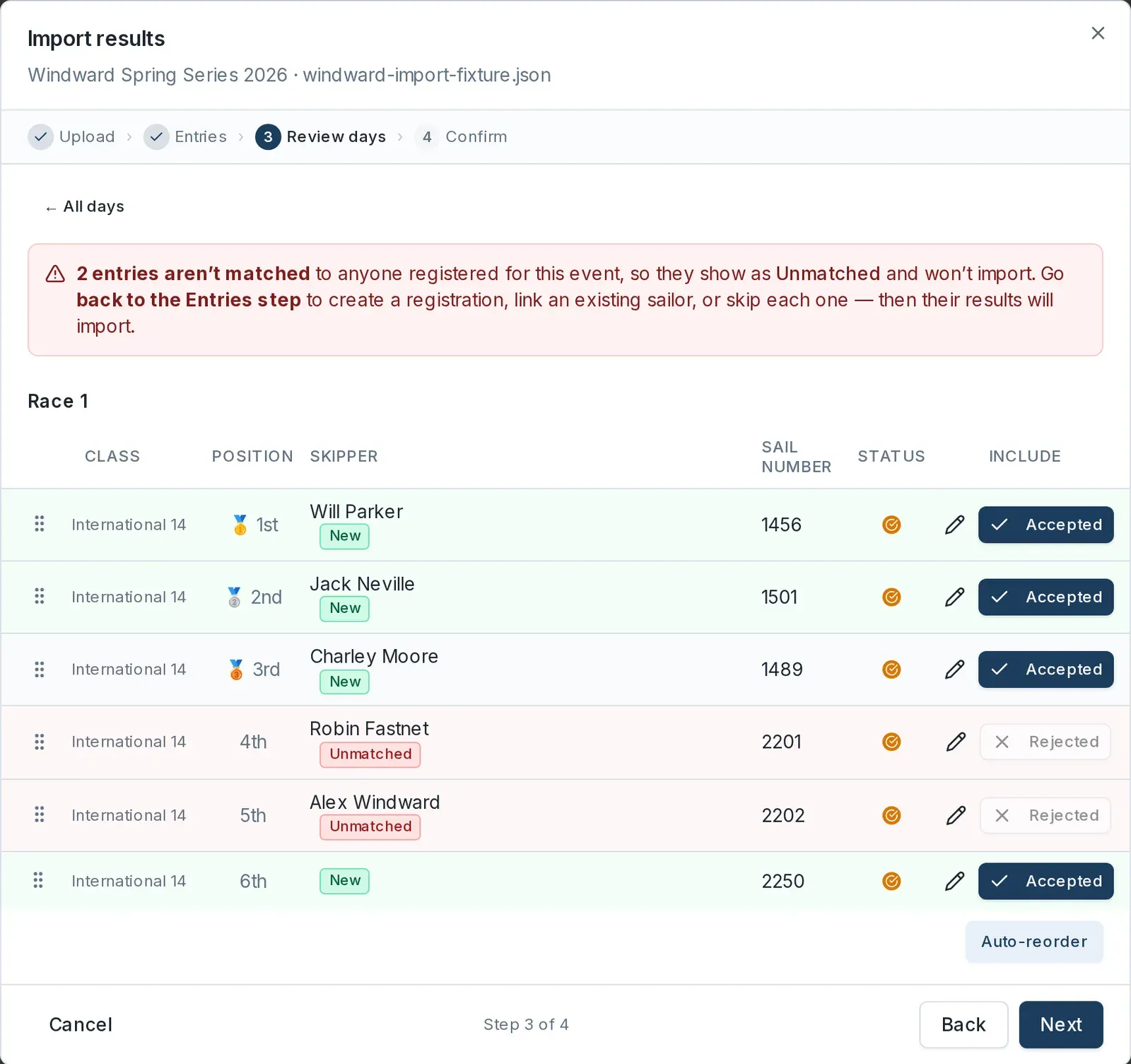
Use ← All days to return to the list, then select Next.
Apply the import
The Confirm step summarises what will change: the number of accepted result changes, any race-structure changes, and a warning if applying will revert a published day to draft. A projected series standings panel shows the effect on the leaderboard.
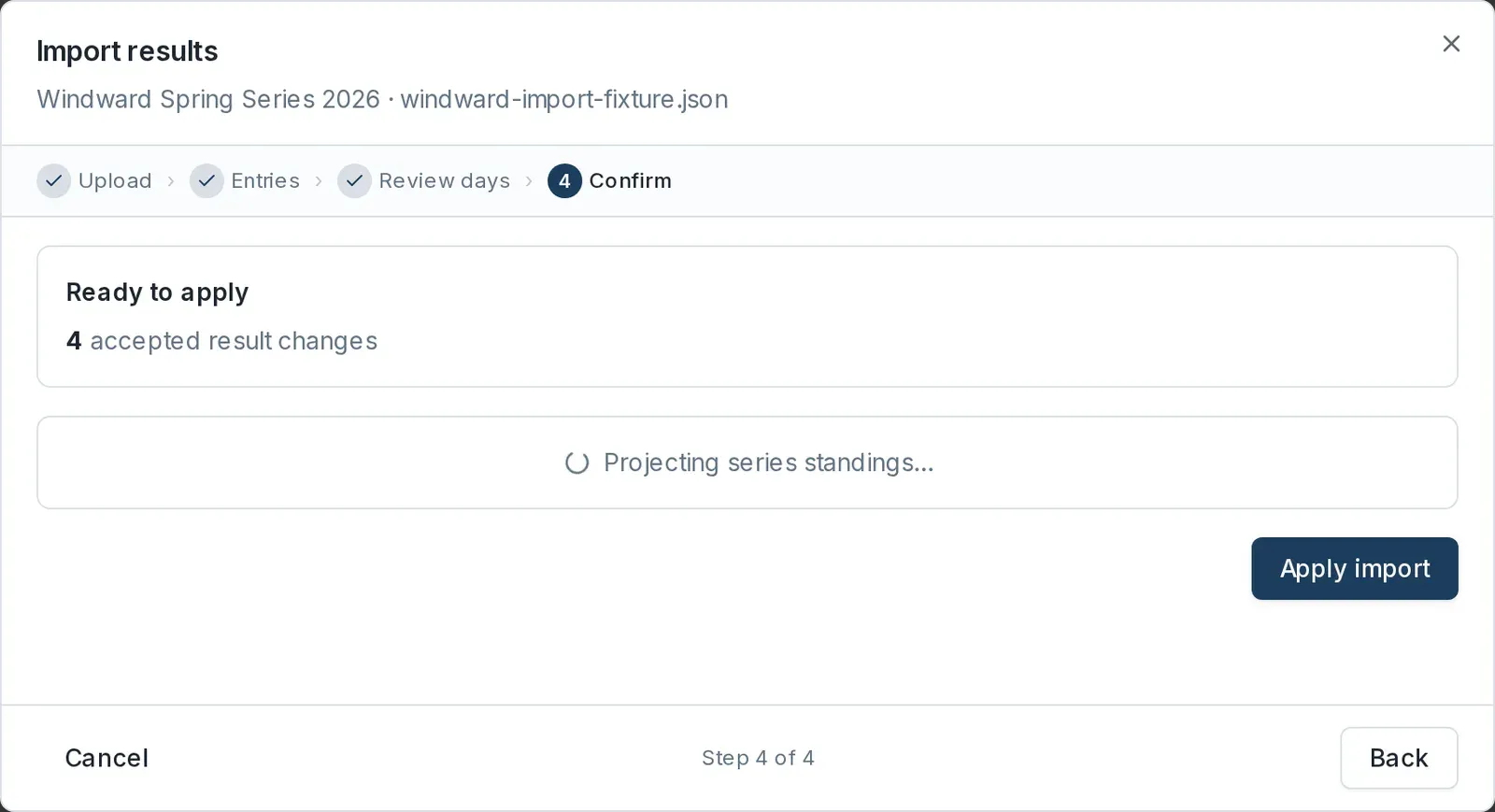
Select Apply import. This is the point at which Dockside writes the results.
When it finishes, the wizard confirms what it wrote and reminds you that the results are saved as draft, not yet public.
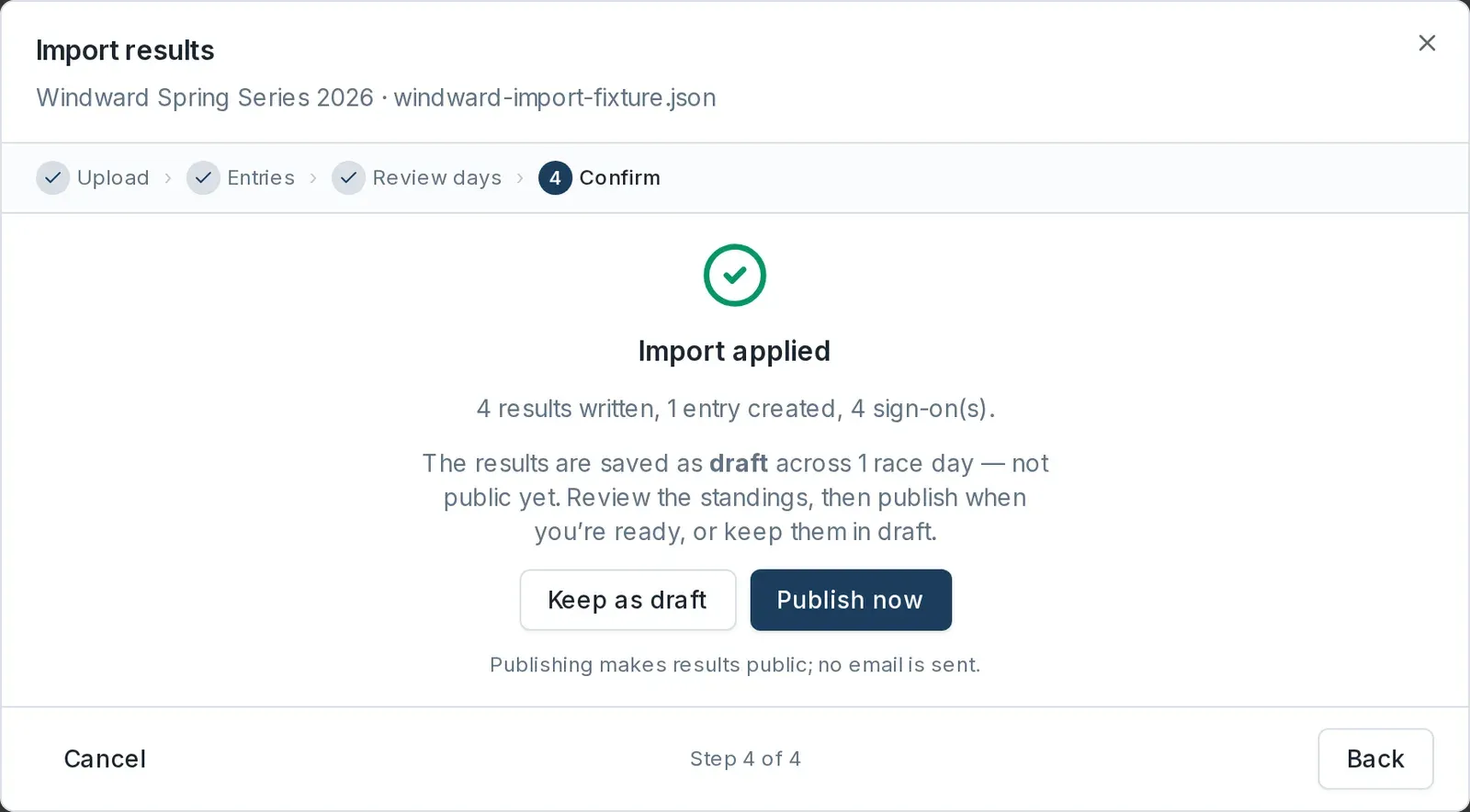
Choose Keep as draft to review the standings first, or Publish now to make the results public straight away. Publishing sends no email. You can also publish later from the race day. For how publishing works, see Publish results.
Undo an import
If you need to reverse an import, open the Results Import card again and select the History tab. Each import is listed with its date and result count. Select Rollback, then Confirm Rollback.
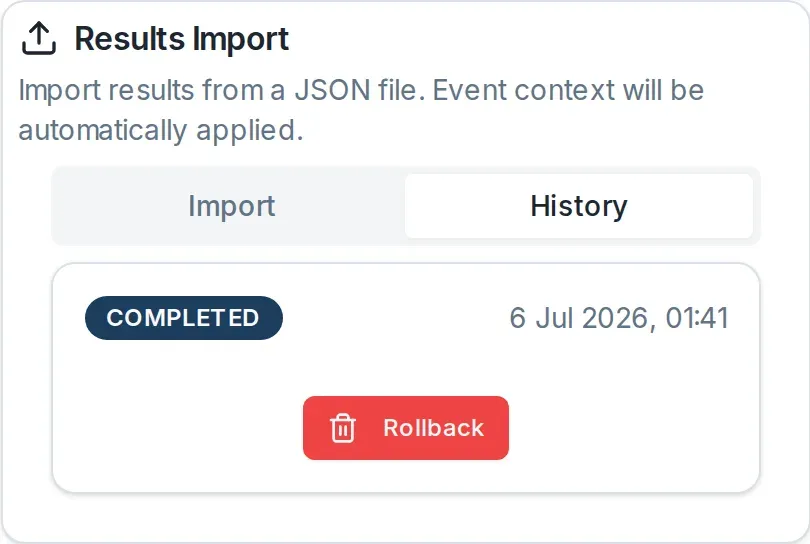
Rollback deletes everything that import created, including the results, races, race days, and any sailors or registrations it added. It cannot be undone, so use it to unwind a mistaken import rather than to edit results. To change a single result, see Enter results for a race day.