Delete an event
Delete an event
You can delete an event you no longer need, but only while it is still a draft with no results. Deleting an event is permanent.
Access. You need the Official or Admin permission on the club or association that runs the event. An admin or official of the event's host venue or host association can delete it too. Site administrators can delete any event.
To delete a draft event:
- Open the event and select Edit Event.
- At the bottom of the form, select Delete.

- A confirmation appears, headed Are you sure?:
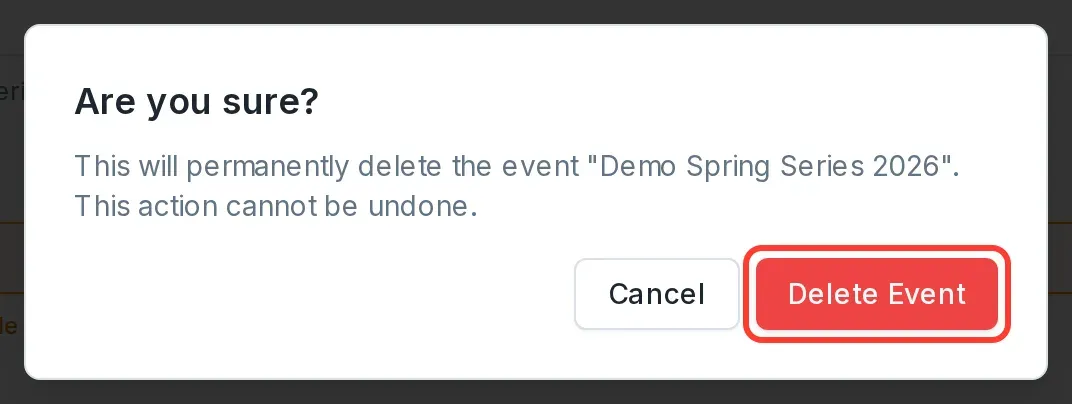
This will permanently delete the event "[event name]". This action cannot be undone.
- Select Delete Event to confirm.
When you cannot delete an event
Dockside protects events that people may have signed on to or that hold race data. The Delete button is switched off, with the reason shown beside it, when either of these is true:
- Not in draft — the event has been published.
- Has results — at least one race has results entered.

To remove an event in one of these states, do not try to delete it. Set its Status to Cancelled instead: open Edit Event, choose Cancelled on the Basic tab, and select Save. The event stays on record but is marked as cancelled. See Publish a draft event for how the status field works.