Create a scoring profile
Create a scoring profile
This article covers how to add a scoring profile to your club and, if you want, set it as the default for new events. A scoring profile is a reusable set of scoring rules covering your series, regattas, and open meetings. For what a profile is and how Dockside picks one, see How scoring profiles work.
Access. You need the Official or Admin permission on the club.
Open the Scoring Profiles page
- Go to your club's page.
- In the Club Actions section, select Scoring Profiles.
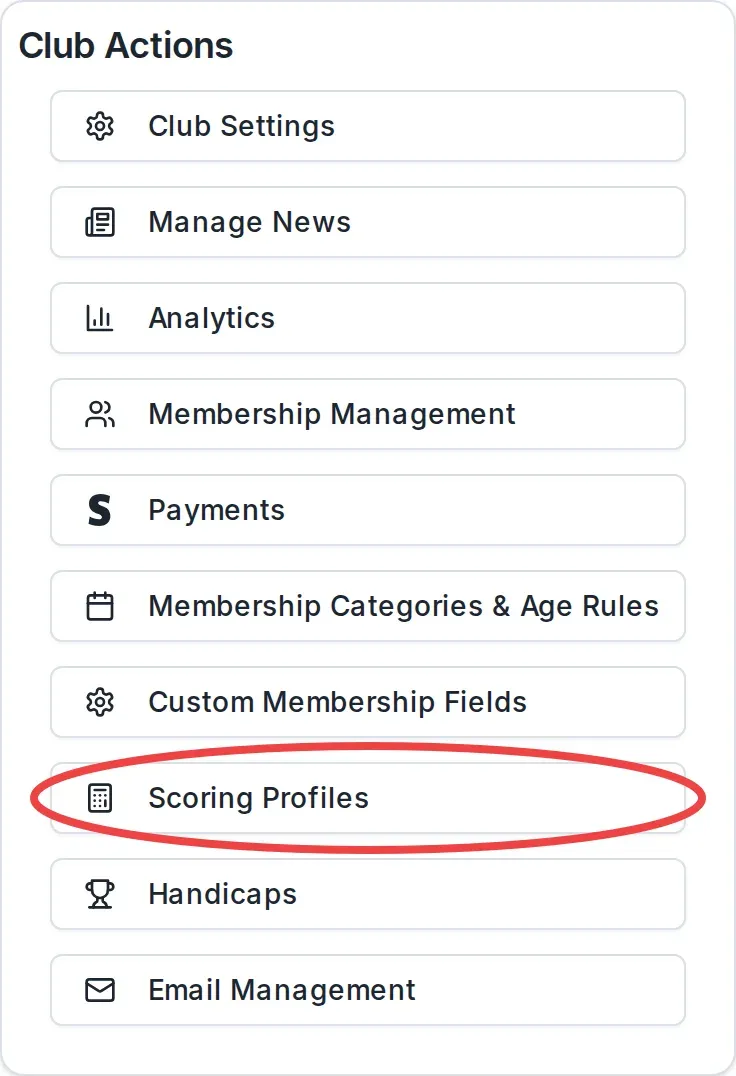
This opens the Scoring Profiles page for your club. It lists the profiles the club already has. Each one shows its name and description, and the current default carries a Default badge.
If the club has no profiles yet, you see No scoring profiles yet with a single Create Profile button instead of a list.
Create the profile
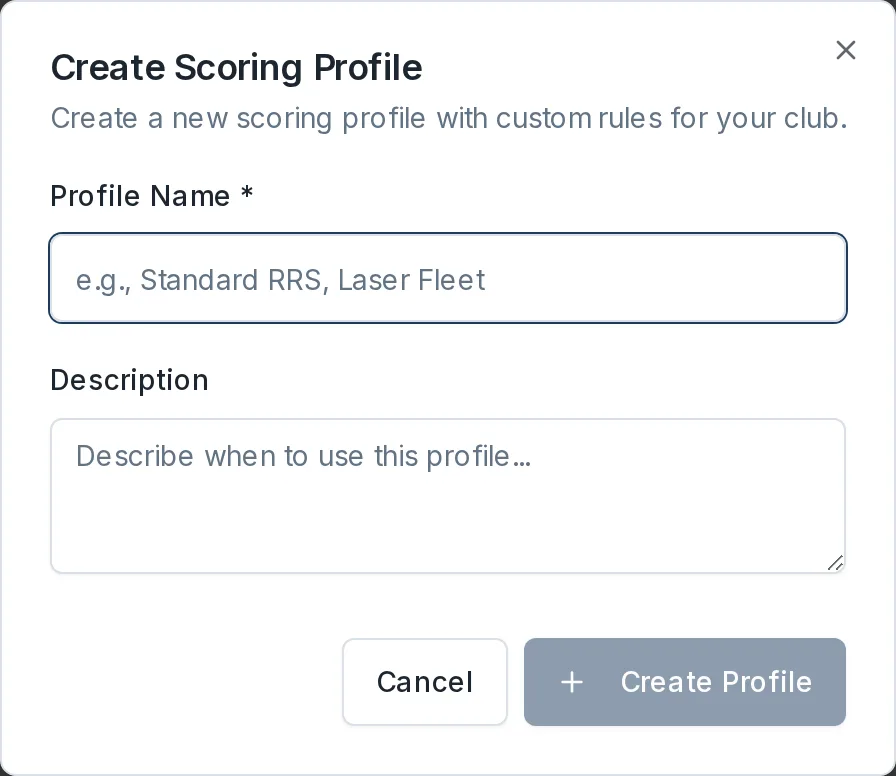
- Select Create Profile, at the top right of the list.
- In the Create Scoring Profile dialog, enter a Profile Name. The name is required. Choose something a race officer will recognise, for example the club's standard rules or a particular fleet.
- Add a Description if you want. This is optional, and it appears under the name in the list and when someone chooses a profile for an event, so use it to say when the profile should be used.
- Select Create Profile.
The new profile appears in the list. It starts with a sensible set of standard rules for all three event types, so it is ready to use straight away. To change how any code or discard is scored, see Edit a scoring profile's rules.
Set it as the default
New events use the club's default profile automatically. To make your new profile the default:
- Find the profile in the list.
- Select Set Default.

The Default badge moves to this profile. A club has one default at a time, so setting a new default removes the badge from the previous one. New events will now use this profile unless someone chooses a different one. You can change the default again at any time.
Rename or remove a profile
- To change a profile's name or description, select Edit on its row, make your changes in the Edit Scoring Profile dialog, and select Save Changes.
- To remove a profile, select the delete (bin) icon on its row and confirm in the Delete Scoring Profile dialog. Deleting a profile cannot be undone.
You cannot delete the default profile. Set a different profile as the default first, then delete the one you no longer need.